VMware Cloud Director and Veeam: What Actually Breaks and How to Fix It

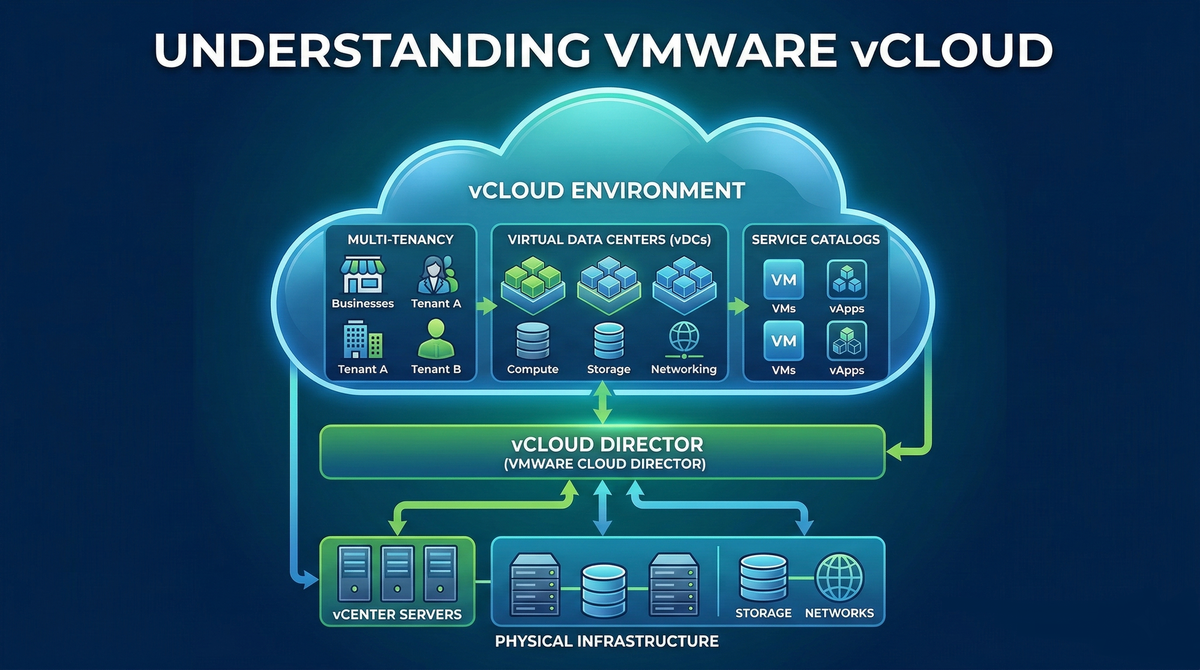
A practitioner's guide to the integration pitfalls that disrupt production replication, and how to fix them.
Introduction
Most VMware Cloud Director administrators have lived through some version of this: a replication job that ran without a single failure for months goes silent after a routine certificate renewal. Tickets come in. Tenants cannot fail over. You dig into the logs and eventually find the real culprit is a VCD cell IP address that Veeam can no longer reach because it sits behind a load balancer. It was always there. Nobody flagged it during setup because it never mattered until that renewal.
That is the nature of operating a VCD and Veeam environment at scale. The integration between VMware Cloud Director (VCD) and Veeam Backup & Replication (VBR) is genuinely impressive in what it can do. It replicates and protects complex, multi-tenant cloud workloads at a level of fidelity that simpler tools cannot approach. But that capability comes with real complexity underneath. Certificate validation logic, storage policy rules, API rate limits, database growth, and access control hierarchies all interact in ways the documentation does not always make obvious.
This guide is meant to be the map I wish I had when I first started working with these environments. Each section takes a real category of failure, explains what is actually happening under the hood, and gives you concrete steps to fix it or avoid it entirely. Whether you are designing a new MSP environment on VMware Cloud Foundation or debugging something that stopped working last night, the goal is the same: understand the system well enough that nothing surprises you.
Integration Architecture: The Software-Defined Abstraction Layer
The foundation of a Veeam-protected Cloud Director environment is a layered model with the Veeam Backup Server at the center. It acts as the orchestration engine, communicating with VCD and, depending on the protection scope, with the underlying vCenter Server as well. A standard deployment also includes one or more backup proxies and at least one backup repository. Once VCD enters the picture, the scope expands to include Veeam Backup Enterprise Manager (VBEM), which provides the portal interface that tenant administrators use for self-service operations [1].
In MSP environments, this stack is almost always deployed on a consolidated infrastructure such as VMware Cloud Foundation (VCF), with Veeam components placed inside management domains for high availability and low-latency access to source data [5]. The multi-tenancy model is handled through the Cloud Connect framework, where the Service Provider allocates resources to tenants through TLS-authenticated cloud gateways.
| Component | Role | Key Dependencies |
|---|---|---|
| Veeam Backup Server | Central orchestrator; runs replication and restore jobs, manages scheduling and policies | Network access to VCD API (TCP 443), vCenter (TCP 443), repositories |
| Veeam Backup Enterprise Manager | Multi-tenant portal frontend; hosts the Self-Service Portal for tenant access | Database (SQL or PostgreSQL), Veeam Backup Server, VCD cells |
| Backup Proxy | Data mover; handles snapshot creation, data transfer, and deduplication | vCenter permissions, VMware Tools on guest VMs, repository connectivity |
| Backup Repository | Target storage for replica files and CDP logs | Sufficient IOPS for concurrent jobs; network path from proxy |
| Cloud Gateway | Tunnel endpoint for Cloud Connect tenant traffic | Public IP and DNS record, TCP 6180 outbound from tenants, TLS certificate |
| VMware Cloud Director | Cloud management plane; abstracts vApps, VDCs, and Organizations | PostgreSQL or MS SQL database, NSX-T or NSX-V networking, vCenter integration |
| vCenter Server | Hypervisor management; source of VM data and snapshot APIs | ESXi host connectivity, certificate sync, adequate resources for snapshot tasks |
One design detail worth internalizing early: Veeam treats the Cloud Director server as a top-level container. This means you can target Organizations, Virtual Data Centers, or individual vApps as replication and protection targets. When a job is scoped to the VDC level, newly provisioned VMs are automatically pulled into the protection scope. That dynamic discovery is essential in cloud environments where workload lifecycle is fluid, and it also creates some of the hazards covered in the sections that follow.
Security Protocols and the SSL Validation Conundrum
The TLS handshake between Veeam and the VCD cells underpins everything else in this integration. When it breaks, every job touching that VCD instance breaks with it. Understanding why it breaks requires knowing about a change introduced around VCD 10.6.1, one that caught a lot of experienced administrators off guard.
The Direct-Cell Validation Shift
In older versions of Veeam, certificate validation was performed against the shared portal URL, the same HTTPS endpoint tenant administrators used in their browser. This was simple and it worked well with the common architecture of VCD cells sitting behind a load balancer.
In more recent versions, that logic changed fundamentally. Veeam now resolves the north-facing IP addresses of individual VCD cells and attempts to connect to each one directly on TCP 443 to verify its certificate [7]. The reasoning is defensible: validating the entire cluster's identity rather than just the shared VIP is more thorough. The problem is that in most MSP and enterprise environments, those cell IPs are not directly reachable from the Veeam Backup Server. They live behind a Layer 4 load balancer with no direct routing path for management traffic.
The error that surfaces is one you may already recognize: "Failed to validate the VMware Cloud Director cell certificate." When administrators skip the verification just to complete the wizard, they often walk straight into a second failure: "Host discovery failed" on the next scheduled job run. The root cause is identical. Skipping the prompt does not solve the underlying connectivity problem.
Certificate Chain Integrity for Cloud Connect
A related certificate problem appears specifically on the Cloud Connect side. When a Service Provider generates a CSR for the Cloud Connect TLS certificate, one of the most common mistakes is exporting the signed certificate without including the private key in the PFX file. The result is that the SP Veeam Backup Server silently fails to authenticate incoming tenant connections [8]. There is no obvious error pointing at the certificate itself, which is part of what makes this frustrating to diagnose.
Even when the private key is correctly included, an incomplete certificate chain will cause failures. Both the intermediate and root CA certificates need to be installed on the SP server. If the tenant's backup server cannot trace a complete path from the leaf certificate up to a trusted root, authentication terminates. The practical lesson here is to always test the full certificate chain, not just the leaf, before rolling out any certificate change to production.
Networking Topologies: Navigating NSX and Cloud Gateway Obstacles
Certificate problems tend to produce immediate, obvious failures. Networking misconfigurations are different. They produce chronic, intermittent failures that work perfectly in your test environment and then quietly degrade in production. Three areas are worth particular attention.
Cloud Gateway DNS and Load Balancing
Service providers typically hand tenants a single DNS name for the Cloud Connect endpoint. It is a clean setup that hides the complexity of a multi-gateway pool behind a single familiar hostname. In practice, this is often implemented with DNS round-robin, where multiple A records point to different gateway IPs.
There is an important nuance here that trips people up. Veeam officially states that DNS round-robin and external load balancers are not supported for Cloud Gateway traffic [9]. The reason is that Veeam uses its own internal load balancing logic. Once a tenant's backup server establishes its first connection, the Cloud Connect server sends back a complete list of all available gateways with their individual DNS names and IP addresses. The tenant then connects directly to whichever gateway has the fewest active sessions. Placing DNS round-robin or an external load balancer on top of this logic breaks the gateway forwarding rules and produces connection errors.
The recommended approach is to use a single primary DNS name such as cc.provider.com for the initial connection only, with individual DNS names configured for each gateway behind it. Let Veeam's own gateway selection handle the load distribution from there.
Port Requirements and NSX Firewall Rules
Cloud Connect tunnels operate over TCP 6180 by default. This port rarely appears in pre-existing enterprise firewall rulesets, and administrators often discover the gap only when tenant jobs start timing out. Stateless firewall configurations that block return traffic compound this.
In NSX-T environments, and particularly in VMware Cloud on AWS deployments, there is an additional requirement that catches people out: the Veeam Backup Server and all proxy servers must be able to reach the vCenter internal IP over TCP 443. NSX-T's built-in firewall does not open this port by default. You need explicit allow rules for each proxy server's IP targeting the vCenter management IP. Missing even one proxy node in those rules typically shows up as intermittent job failures that are hard to reproduce consistently [10].
SSL/TLS Inspection: A Silent Problem
Deep Packet Inspection or SSL/TLS inspection on perimeter firewalls is one of the most insidious networking issues in a VCD and Veeam environment. When the firewall intercepts and re-signs HTTPS traffic, it presents a different certificate to the Veeam client than the one the SP actually issued. The resulting thumbprint mismatch causes Veeam to drop the connection. The firewall logs typically show a successful HTTPS session, which keeps the root cause invisible unless you are looking at both the Veeam logs and the firewall logs at the same time.
The fix is straightforward: exempt Cloud Connect traffic from SSL inspection entirely. Create bypass rules for both the Cloud Connect hostname and the individual gateway IPs.
The Self-Service Paradigm: Management and Security Headers
The Veeam Self-Service Portal is how Cloud Director tenants manage their own replicas and failover operations without needing to call your support desk. Tenants can also use VCD-enabled accounts for administrative tasks, but the primary operational value of the portal in a VCD context is replica management. For MSPs, this is a meaningful operational benefit. Its implementation, however, contains a security limitation that every multi-site provider needs to know about before they encounter it during a security audit.
The Multi-Site URL Restriction
Enterprise Manager exposes a configuration key called security-headers:vcdIpOrDnsAddress that is intended to restrict Self-Service Portal access to specific Cloud Director DNS names. In a single-site deployment, this works exactly as documented. In a multi-site deployment with separate production and disaster recovery sites, you naturally want to authorize multiple VCD URLs.
The current version of Enterprise Manager does not support multiple URLs or domain-level wildcards in this field [11]. Comma-separated lists fail silently. The https://*.provider.com/ wildcard pattern is not recognized. The only configuration that actually works across multiple sites is this:
<add key="security-headers:vcdIpOrDnsAddress" value="*" />Using the wildcard value disables the origin restriction entirely. This is a known vendor limitation, not a misconfiguration on your part, but it will be flagged in any security audit or penetration test. Until a future Enterprise Manager release adds proper multiple-URL support, the right approach is to compensate with other controls: restrict network access to the SSP at the infrastructure layer, add WAF rules where possible, and document this as a known vendor limitation with compensating controls in place.
value="*" configuration will almost certainly appear as an unmitigated finding in any penetration test or compliance review. Document it explicitly as a known vendor limitation with a compensating control narrative before an auditor documents it for you.
Role Mapping and the Missing Permissions Warning
Tenant access to the portal is controlled through VCD role mapping on the Veeam Backup Server, where you assign specific VCD roles to either Backup Administrator or Restore Operator rights. In hybrid cloud or Microsoft 365 integrated environments, a "Missing Permissions" warning frequently appears when the application registration lacks Global Reader or API-level permissions [13, 14]. It is tempting to dismiss this warning because everything appears to work. In practice, the portal may silently fail to enumerate shared mailboxes, and certain VCD object types can fall outside the protection scope. Those gaps only become visible when someone tries to restore something that was never fully protected.
Metadata Capture: The Core of Cloud Recovery
A virtual machine in a Cloud Director environment is more than its disk contents. Its identity within the cloud hierarchy, including the Organization, VDC, vApp, network configurations, storage policies, startup order, and custom properties, is stored as metadata. Veeam captures this metadata during the replication job and uses it to recreate the full container structure during failover, mapping the VM back to its exact original location [12].
Without that metadata, you do not have a cloud-aware replica. You have a vSphere-level copy of the VM data, and recovering from it means manually rebuilding vApp settings, network connections, and storage policy assignments under the pressure of a live incident. Two failure modes here are worth calling out specifically.
API Timeouts During Metadata Collection
If the Veeam server hits API timeouts or connectivity issues while talking to VCD cells during the metadata capture phase, the replication completes at the vSphere level but the VCD-aware failover capability is silently missing. This is easy to overlook in monitoring dashboards that report job success based on VM data transfer rather than metadata integrity.
Get into the habit of reviewing the Veeam job log for any reference to metadata collection failures, even when the overall job status shows green. These partial successes are particularly dangerous because they create confidence that failover will work, right up until the moment someone actually needs to trigger one.
Guest Indexing in Isolated Networks
When guest file system indexing is enabled, Veeam tries to connect to the VM's internal IP address to enumerate the file system. VMs on isolated vApp networks are, by design, unreachable from the Veeam server's network segment. The credential test fails, indexing is skipped, and the job often logs a warning rather than an error. File-level recovery for that VM is now degraded, and nothing in the job summary will tell you that clearly.
The correct fix is to use VIX/RPC via VMware Tools for guest interaction in isolated network environments [16]. This communicates through the hypervisor API rather than the network, so there is no need for a direct IP route to the VM. The prerequisites are an up-to-date VMware Tools installation on the guest and a Veeam service account with vCenter-level guest interaction API permissions.
Permission Hierarchies and RBAC Complexity
Access denied errors during replication or failover almost always come back to permissions. The challenge is figuring out which permission is missing and at which layer, because a VCD and Veeam environment requires correct configuration at three distinct levels: the Cloud Director organization layer, the vCenter layer, and the operating system layer for file-level restores.
vCenter Granular Permissions
One of the most common and costly assumptions is that a Power User or VM Administrator role in vCenter is enough for Veeam operations. It is not. Certain restore types require permissions that are not included in any of vCenter's built-in roles. The table below shows the granular permissions required specifically for an Entire VM Restore [18]:
| Permission Category | Required Privilege | Relevant Operation |
|---|---|---|
| Datastore | Allocate space | Creating restored VM disks on the target datastore |
| Datastore | Browse datastore | Locating replica files and staging restores |
| Network | Assign network | Reconnecting the restored VM to its original network segment |
| Virtual Machine > Change Configuration | Add new disk, Modify device settings | Attaching restored disks to the VM configuration |
| Virtual Machine > Edit Inventory | Create new, Register, Remove | Creating and registering the restored VM object in vCenter |
| Virtual Machine > Provisioning | Allow disk access, Clone virtual machine | Mounting replica data and cloning the VM during restore |
| Virtual Machine > Snapshot management | Create snapshot, Remove snapshot, Revert to snapshot | Snapshot lifecycle management during replication jobs |
| Global | Cancel task | Aborting failed or hung snapshot operations |
File-Level Restore and the Admin Rights Problem
Veeam's file-level restore architecture mounts the backup image locally on a backup or mount server. The person performing the restore needs Local Administrator rights on that server to mount the file system and access files [19, 20]. This requirement frequently conflicts with corporate security policies that restrict administrative access for helpdesk staff and tenant administrators.
Veeam has developed token-based workarounds that temporarily elevate process privileges for the mount operation, but the underlying administrative requirement has not gone away. For MSPs offering self-service file-level restore to tenants, the most practical solution is a dedicated mount server with tightly scoped access policies, isolated from other infrastructure and audited independently.
Database Performance and API Scalability
As your Cloud Director environment grows, the database and the API surface become the most common performance bottlenecks. Both show up in similar ways: a slow VCD UI, Veeam job timeouts, intermittent tenant logouts. The remediation paths are different, so it is worth understanding which problem you are actually dealing with.
VCD Audit Trail Bloat
The VCD database captures every API call, user action, and system event in the audit_trail table. In environments where Veeam, Aria Operations, Container Service Extension, and active tenants are all generating continuous API traffic, this table can grow to tens of millions of rows within months [21]. The effect is progressive: the VCD UI gets slower, API response times increase, and eventually Veeam's metadata collection and object discovery calls start timing out.
There are three things you should have in place. For immediate relief when the table is already large, stop VCD services on all cells, take a full database backup, and truncate the audit_trail table using PostgreSQL commands. Treat this as an emergency maintenance operation with a tested rollback plan. For ongoing management, configure VCD to automatically purge audit events beyond a set retention period using the Cell-Management-Tool. A 90-day window is a reasonable starting point for most MSP environments. For early warning, add the audit_trail row count to your operational dashboards. The growth rate is a useful leading indicator of API load, and spikes often point to a misconfigured integration making redundant calls.
Undersized VCD Cell Infrastructure
Veeam places real load on the VCD API during replication windows. Each job issues discovery queries and metadata capture calls against the VCD cells. In environments with fewer than six cells, or with insufficient CPU and RAM allocation, the management plane can become saturated. The characteristic symptoms are intermittent user logouts and failed replication tasks with timeout errors [22].
Physical disk latency on the ESXi hosts running VCD appliances makes this significantly worse. Before scaling out cells horizontally, verify that the underlying storage meets the IOPS requirements for the VCD database under peak load. Resolving storage contention often eliminates a substantial portion of what appear to be API timeout problems.
Veeam Configuration Database: SQL vs. PostgreSQL
Starting with Veeam Backup & Replication 12, PostgreSQL became the default configuration database, replacing the SQL Express dependency that had historically limited scalability [23]. For most environments, PostgreSQL is the right choice. For very large deployments managing more than 10,000 VMs, full Microsoft SQL Server with AlwaysOn Availability Groups remains the recommended architecture for both performance and high availability.
There is one constraint that trips people up: every Veeam Backup & Replication server and Enterprise Manager instance in your deployment must use the same database engine. Mixed environments, with some servers on SQL and others on PostgreSQL, are unsupported and can produce inconsistencies in job data and tenant configuration that are genuinely difficult to trace.
Continuous Data Protection and Storage Policy Alignment
Continuous Data Protection is Veeam's answer to workloads that need recovery point objectives measured in seconds rather than hours. It works by replicating I/O changes in near-real time using a VMware I/O filter. The capability is real and valuable. The setup requires precision, particularly around storage policy configuration, and there are two traps that catch most administrators the first time through.
The Incompatible Storage Policy Error
CDP depends on the veecdp I/O filter provider being installed and active on both source and target ESXi hosts. During CDP policy creation, Veeam only presents storage policies that have the Replication host-based rule enabled with the veecdp provider. If a policy does not appear in that list, the filter is almost certainly not correctly registered. The most common reason is that ESXi host certificates were renewed without being properly resynchronized with vCenter [24].
When vCenter sees those host certificates as invalid, it blocks external storage access for I/O filter operations, which shuts down CDP entirely. The fix is to resynchronize the host certificates in vCenter, verify the veecdp filter status on each cluster member, and then recreate the storage policy [25].
The AND Logic Problem in Storage Policy Design
vCenter evaluates storage policy rules using AND logic: a datastore must satisfy every rule in the policy to be considered compatible. MSPs often try to combine CDP policies with storage tier tags to align billing and resource management. The result is that datastores must explicitly match both the veecdp replication rule and every storage tag in the policy. Unless the datastores were specifically configured to satisfy that combination, they show as incompatible.
The cleanest solution in practice is to create dedicated CDP-Only storage policies that contain only the replication rule, without any storage tier tags. Billing and resource tracking can be maintained through separate vCenter tags or VCD storage profiles, decoupled from the CDP policy logic.
CDP vs. Snapshot-Based Replication: Choosing the Right Protection Model
| Characteristic | CDP (Continuous Data Protection) | Snapshot-Based Replication |
|---|---|---|
| Recovery Point Objective | Seconds to minutes | Hours, dependent on schedule |
| Recovery Time Objective | Minutes (near-instant failover) | Minutes to hours |
| Infrastructure requirement | veecdp I/O filter on all ESXi hosts; dedicated storage policy | Standard vSphere snapshot capability; no additional filters required |
| Network consumption | Continuous, proportional to write I/O rate | Burst during job windows; predictable scheduling |
| Storage policy complexity | High; AND logic requires precise policy design with dedicated CDP policies recommended | Low; standard storage policies apply |
| Ideal workloads | Tier 1 databases, transaction-heavy apps, strict SLA workloads | Dev/test, non-critical VMs, workloads tolerant of hourly RPO |
| Operational overhead | Higher; certificate sync, filter health monitoring, and policy management required | Lower; standard Veeam job management |
| Cost | Higher; requires additional storage and licensing | Lower; standard Veeam licensing model |
Advanced Troubleshooting and Lifecycle Management
Keeping a VCD and Veeam environment healthy over time means treating upgrades as planned events, not routine maintenance. The compatibility matrix between VCD and VBR versions is specific and unforgiving. VCD 10.6.x requires a minimum of Veeam 12.2 (build 12.2.0.334), while VCD versions below 10.1.2 are fully unsupported due to a VMware database bug where UUIDs are stored as URLs rather than proper GUIDs, which breaks Veeam's object discovery [26]. The rule is simple: check the matrix before you upgrade either product.
Diagnosing "Timeout to Start Agent" Errors
When replication jobs fail with "Timeout to start agent", the natural instinct is to look at the Veeam infrastructure. In practice, the actual cause is almost always in the vSphere layer. These timeouts typically mean vCenter cannot process the snapshot task within the default window, usually because of high disk fragmentation on the VMDK, pre-existing snapshots consuming excessive chain depth, or a resource-constrained vCenter instance [27].
For very large VMs or environments with deep snapshot chains, the SanCollectDiskMappingTimeoutSec registry value on the Veeam Backup Server may need to be increased. Veeam support has documented values as high as 86,400 seconds for the largest production VMs [28]. That said, increasing this timeout is a stopgap. The right fix is to address the underlying snapshot accumulation or storage fragmentation while using the increased timeout to prevent further failures in the meantime.
Handling Certificate Renewals Without Downtime
Certificate renewals on the VCD side trigger a specific failure mode in Veeam: the infrastructure update process hangs at the "Checking Certificate" stage when the Veeam Backup Server cannot directly resolve the individual cell IPs. This is the same direct-cell validation issue from the security section, but appearing here as a lifecycle management problem rather than an initial setup one.
The straightforward way to avoid this is to verify direct cell IP reachability from the Veeam Backup Server before starting any VCD certificate renewal. If direct connectivity is not possible, arrange a post-renewal window with Veeam support in advance to apply the manual thumbprint update. Treating certificate renewals as a Veeam infrastructure change event, rather than just a VCD maintenance task, keeps this from becoming an incident.
Operational Troubleshooting Checklist
When VCD replication jobs start failing, work through each item below before escalating to vendor support. The order matters; later items often turn out to be symptoms of earlier ones.
| # | Check | What to Verify | Common Fix |
|---|---|---|---|
| 1 | API Connectivity | Veeam Backup Server can resolve VCD portal URL; direct or load-balanced TCP 443 access to VCD cells | Open firewall rules for cell IPs; verify DNS resolution from Veeam server |
| 2 | Certificate Health | PFX on SP server includes private key and full chain (leaf, intermediate, and root); thumbprint matches current VCD cell certs | Re-export PFX with private key; use SQL update for manual thumbprint injection if cells are unreachable |
| 3 | Audit Trail Size | Row count in VCD audit_trail table; check growth rate trend | Truncate table during a maintenance window; configure automatic retention via Cell-Management-Tool |
| 4 | Proxy Configuration | Proxies using HotAdd or Virtual Appliance transport mode; no network bottleneck to repository; TCP 443 explicitly open to vCenter in NSX-T | Switch transport mode; add NSX-T firewall rules per proxy IP |
| 5 | I/O Filter Health | veecdp filter active and registered on all cluster members; ESXi host certificates synchronized in vCenter | Resync host certificates; re-register veecdp filter; recreate CDP storage policy |
| 6 | Snapshot Backlog | Pre-existing snapshots on target VMs; VMDK fragmentation level; vCenter task queue depth | Consolidate snapshots; defragment VMDKs; consider increasing SanCollectDiskMappingTimeoutSec temporarily |
| 7 | RBAC Permissions | Veeam service account has all required vCenter granular permissions; permissions scoped to correct datacenter or cluster level | Apply permissions from the KB4488 permission reference; verify scope does not grant cross-tenant visibility |
| 8 | Database Engine | All VBR and VBEM instances use the same database engine, either all SQL or all PostgreSQL | Migrate to a consistent engine before upgrading; document current engine per server |
Conclusion
A well-run VCD and Veeam environment is not one where problems never occur. It is one where problems are anticipated, understood, and caught before they reach tenants. The pitfalls in this guide are not edge cases or obscure scenarios. They are the predictable consequences of integrating two complex, independently evolving platforms across a multi-tenant network boundary, and they happen to experienced administrators just as often as to anyone else.
What separates resilient environments from fragile ones tends to be consistent: proactive certificate lifecycle management, storage policies designed with CDP's AND logic in mind, database infrastructure sized for actual API load rather than initial estimates, and a team that checks the compatibility matrix before every upgrade rather than after the first failure.
As both platforms continue to evolve, some of the specific workarounds described here will eventually be replaced by native fixes. The underlying discipline will not. Operational resilience in cloud infrastructure is built incrementally, through accumulated understanding and tested procedures. I hope this guide shortens that process for you.
Links Cited
- [1] Veeam Backup & Replication with VMware Cloud Director and Cloud Director service
- [2] Backup and Recovery Challenges with vCloud Director, Virtualization Review
- [3] Supported Platforms and Applications, Veeam ONE User Guide
- [4] Frontend Scalability, Veeam Service Providers Best Practice Site
- [5] Architecture pattern for deploying Veeam on VMware Cloud Foundation, IBM Cloud Docs
- [6] Getting Started with Replication to VMware Cloud Director, Veeam Help Center
- [7] Cloud Director certificate renewal, Veeam R&D Forums
- [8] KB2323: Troubleshooting Certificate and Connection Errors in Cloud Connect, Veeam
- [9] KB4314: Job Writing to Cloud Connect Repository Fails, Veeam
- [10] KB2414: VMware Cloud on AWS, Support, Considerations, and Limitations, Veeam
- [11] Veeam Self-Service Portal vCloud Director Plugin, R&D Forums
- [12] V11: Replication and IaaS management with Veeam and VMware Cloud Director, Veeam Blog
- [13] Veeam for Microsoft 365 v8 Missing Permissions Warning, Managecast Technologies
- [14] Missing Application Permissions, Veeam Community Resource Hub
- [15] Public VCF as-a-Service, Backups with Veeam Data Platform, OVHcloud
- [16] vCloud Backup, vApp Network issue, Veeam R&D Forums
- [17] vCenter Server Granular Permissions, Veeam R&D Forums
- [18] Entire VM Restore, Veeam Backup & Replication Permissions for VMware vSphere
- [19] Security error when doing file level restore, Veeam R&D Forums
- [20] RBAC Access to user restore, Veeam R&D Forums
- [21] Improve Cloud Director Database Performance, Virtualisation Tips & Tricks
- [22] VMware Cloud Director intermittently logs users out with lock timeout errors, Broadcom Knowledge
- [23] VBR Database, Veeam Backup & Replication Best Practice Guide
- [24] Considerations and Limitations, Veeam Backup & Replication User Guide
- [25] CDP setup with VMware vCloud Director incompatible storage policy, Veeam Community
- [26] KB4488: Veeam Backup & Replication support for VMware Cloud Director
- [27] VM backup failed with Timeout to start agent from Veeam, Broadcom Support
- [28] KB4637: Failed to collect disk files location data. Timeout exceeded, Veeam
- [29] How to increase your Veeam backup performance on VCD by 10x, vCloud Vision
- [30] Strategies for full backups that run too long, Veeam R&D Forums