

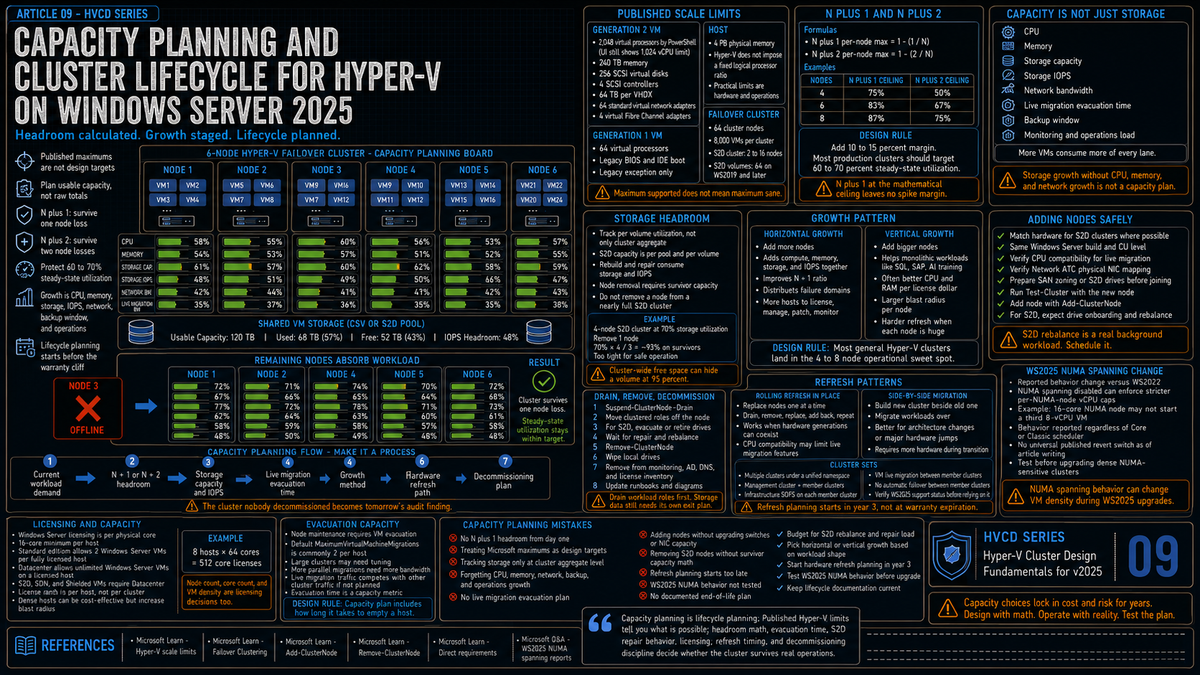
Article 9 in the Hyper-V Cluster Design Fundamentals for Windows Server 2025 series. This article covers capacity planning and cluster lifecycle: the actual Hyper-V scale limits in 2025, the headroom math that keeps a cluster healthy under failure, vertical versus horizontal growth, node lifecycle (adding, evacuating, removing), Cluster Sets for scale beyond a single cluster, the WS2025 NUMA spanning behavior change that catches people out, and the decommissioning approaches that hold up.
Capacity planning is the part of cluster design that does not show up in the marketing slides. The cluster looks fine in month one and starts hemorrhaging operational goodwill in year two when the headroom you did not build in is the headroom you do not have during a node failure or a workload growth spike. Lifecycle is the same problem on a longer timescale: the hardware refresh that you do not plan for is the hardware refresh that becomes a forklift migration during a vendor end of support cliff.
This article covers both. Microsoft has published scale limits that are large enough to handle most environments. The work is not pushing those limits; the work is staying well below them with deliberate headroom and a plan for what comes next.
The actual scale limits in 2025
Per Microsoft Learn, here are the published Hyper-V scale limits for Windows Server 2025. These are the absolute maximums; you will never operate near these numbers in a real cluster.
Per VM (Generation 2)
| Resource | WS2025 maximum | WS2022 maximum |
|---|---|---|
| Virtual processors | 2,048 (PowerShell only; UI still 1,024) | 1,024 |
| Memory | 240 TB | 240 TB |
| SCSI virtual disks | 256 | 256 |
| SCSI controllers | 4 | 4 |
| Per VHDX size | 64 TB | 64 TB |
| Virtual network adapters | 64 standard adapters for Generation 2 | 64 standard adapters for Generation 2 |
| Virtual fibre channel adapters | 4 | 4 |
Per VM (Generation 1)
Generation 1 VMs cap at 64 virtual processors regardless of host OS version. Generation 2 is the default in WS2025 per Microsoft, and is where the higher scale limits live.
Per host
| Resource | WS2025 maximum |
|---|---|
| Physical memory | 4 PB with 5-level paging, 256 TB with 4-level paging |
| Logical processors | 2,048 |
| Virtual processors available to the host | 2,048 |
| Virtual processors in-use per host | 2,048 |
| Virtual processors per logical processor | No ratio imposed by Hyper-V (practical limit is hardware and workload) |
| Running VMs per server | 1,024 |
Per failover cluster
| Resource | Maximum |
|---|---|
| Cluster nodes | 64 |
| VMs per cluster | 8,000 |
| S2D nodes per cluster | 2 to 16 (per Microsoft Learn S2D requirements) |
| Volumes per S2D cluster | 64 (WS2019 and later); 32 (WS2016) |
The 64 node failover cluster maximum applies to disaggregated storage architectures (SAN, NAS, SMB shares from a separate SOFS cluster). When the cluster is also providing storage via Storage Spaces Direct, the cap drops to 16 nodes because S2D itself is limited to 2 to 16 servers per cluster pool. Most hyperconverged Hyper-V clusters in production are 4 to 8 nodes for operational reasons, well under both caps.
N plus 1, N plus 2, and the headroom math
The most important capacity planning concept on a failover cluster is headroom for failure. If the cluster runs at 90% utilization across all nodes and one node fails, the remaining nodes need to absorb that node's workload. If they are already at 90% they cannot. VMs on the failed node either fail to come up on a survivor, or come up with severe resource contention that makes them effectively unavailable.
N plus 1
N plus 1 means the cluster has enough capacity to lose any single node without workload impact. For a 4 node cluster running at full design capacity, that means each node operates at 75% utilization or less in steady state. When one node fails, the workload redistributes to 3 nodes, taking each to 100% which is the absolute ceiling.
In practice you want margin even at the ceiling, so N plus 1 actually means each node runs at 70% or less in steady state. This applies independently to CPU and memory. It is also worth applying to storage capacity and IOPS, especially on Storage Spaces Direct where a node failure means the rebuild operation consumes additional storage and IOPS until repair completes.
N plus 2
N plus 2 means the cluster tolerates two simultaneous node failures. The math gets stricter: a 4 node cluster at N plus 2 has each node running at 50% or less. A 6 node cluster at N plus 2 has each node at 67% or less. N plus 2 is the right model when you cannot tolerate a maintenance window during which a second node failure would cause workload impact, or when nodes are far enough apart geographically that simultaneous failures are credible (which is mostly stretched cluster territory, covered in article 12).
The math you actually run
Headroom calculation per node, applied to CPU, memory, storage capacity, and storage IOPS independently:
Apply additional margin (typically 10 to 15 percent) on top of these numbers because real workloads have spikes and the math above assumes steady state. The practical operating target on most production clusters is 60 to 70 percent per node steady state, which gives N plus 1 with reasonable margin and N plus 2 with tight margin on larger clusters.
For Storage Spaces Direct specifically, you need additional pool free capacity beyond the N plus 1 math because S2D needs free space to rebuild after a drive or node failure. Per Microsoft Learn (Plan volumes), the documented recommendation is to reserve the equivalent of one capacity drive per server, up to a maximum of four drives total. For example, on a 4 server cluster with 1 TB capacity drives, set aside 4 TB of pool capacity as reserve. This guarantees an immediate, in place, parallel repair can succeed after the failure of any drive. Use Get-ClusterS2DStorageUsage to check pool free space against this reserve requirement.
Vertical versus horizontal growth
When you need more capacity, you either add more nodes (horizontal) or grow the existing nodes (vertical). Different tradeoffs.
| Approach | Pros | Cons |
|---|---|---|
| Horizontal (more nodes) | Adds compute, memory, storage capacity, and storage IOPS in one step. Improves N plus 1 ratio. Distributes failure domains. | More physical hosts to manage, license, monitor. Some workloads cannot scale across more VMs and need bigger individual VMs instead. |
| Vertical (bigger nodes) | Lets large monolithic workloads (SQL, SAP, AI training) get more resources per VM. Often cheaper per unit capacity in CPU and RAM. | Larger blast radius per node failure. Workload concentration on fewer hosts means N plus 1 math is harsher. Hardware refresh becomes a much bigger project. |
For most general purpose Hyper-V clusters, horizontal scaling to a target node count of 4 to 8 nodes hits a sweet spot: enough nodes that N plus 1 math is reasonable (75% to 87% per node ceiling), few enough that operational complexity stays manageable. Adding a ninth node to an 8 node cluster gives you marginal benefit; adding a ninth node to a 4 node cluster meaningfully changes your headroom posture.
Adding nodes to a running cluster
Per Microsoft Learn, you add a cluster node with the Add-ClusterNode PowerShell cmdlet (or via Failover Cluster Manager). The mechanics are well documented and the operation is non disruptive when done correctly.
The pre work that matters:
- Hardware match. Per Microsoft Learn S2D hardware requirements, all servers in an S2D cluster should be the same manufacturer and model. Live migration compatibility levels (covered in article 4) determine what differences in CPU you can tolerate.
- OS and patch level. The new node should be at the same Windows Server build and cumulative update level as existing nodes before joining.
- Network configuration. Network ATC intent application happens automatically when the node joins; verify the new node's physical NICs match the intent declaration before adding.
- Storage prep. For S2D, the new node's drives should match the existing pool layout (cache and capacity drive types and counts). For SAN backed clusters, the new node needs its zoning and masking done before it is added.
- Validation run. Run
Test-Clusteragainst the proposed cluster including the new node before doing the actualAdd-ClusterNode.
For S2D specifically, Microsoft documents that adding a node automatically onboards its drives into the pool and rebalances the storage. The rebalance is a substantial background operation that affects storage performance for the duration; schedule the addition for low load periods.
Removing nodes and decommissioning
Removing a node is the inverse operation, and the order of operations matters more.
Drain first, then remove
Before Remove-ClusterNode, drain the node so it is not running any roles. Suspend-ClusterNode -Drain moves all clustered roles (VMs, file server roles, etc.) to other nodes. The drain is graceful and uses live migration where applicable.
For S2D nodes, draining the workload roles is only the first step. The drives in the node still hold data that needs to relocate to other nodes before the physical hardware can leave. The S2D operation to do this safely is documented by Microsoft as part of the storage maintenance and removal procedure: pause the node, retire the drives or use the Remove-ClusterNode operation which triggers data evacuation, wait for repair to complete, then physically remove.
The capacity check
Before removing a node from an S2D cluster, verify the remaining nodes have enough capacity to absorb the data that will relocate. A 4 node cluster operating at 70% storage utilization cannot lose a node without first either reducing the data footprint or accepting that the remaining 3 nodes will be at approximately 93% utilization after the removal completes. That is too tight to operate safely.
Hardware decommissioning
Once a node is out of the cluster:
- Wipe the local drives (DBAN, ATA Secure Erase, or vendor disposal procedures depending on data sensitivity)
- Remove from monitoring, AD, DNS, and license inventories
- Clean up any cluster references that did not get removed automatically (the cluster's witness configuration, GPO scoping, etc.)
- Update the runbook so the next person who looks at the cluster does not get confused by stale documentation
Hardware refresh approaches
Modern x86 server hardware has a useful production life of roughly 5 to 7 years before the combination of warranty expiration, performance trailing newer generations, and power efficiency gaps makes refresh the right move. Vendor end of support cycles can shorten this; AI workload demands can shorten it further.
Rolling refresh in place
The most common approach: replace the cluster nodes one at a time over a planned window. Drain a node, remove it, replace it with new hardware, add it back, repeat. Combined with the cluster OS rolling upgrade (covered in article 5), this lets you refresh both hardware and operating system version without a maintenance window.
Limits: works when the new hardware is similar enough to coexist in the same cluster. CPU compatibility level needs to support live migration between old and new (article 4 covers this). When generations are far enough apart (Skylake to Sapphire Rapids, for example), the cluster may need to run in a compatibility mode that gives up new instruction sets.
Side by side migration
The alternative: build a new cluster on new hardware and migrate workloads over. Slower and requires more hardware in flight at once, but allows more aggressive hardware generation jumps and lets you change configuration choices (S2D versus SAN, network architecture, OS version) that would otherwise be cluster wide commitments.
Use side by side when the rolling refresh would force compatibility compromises that hurt the cluster's long term value, or when the migration to new architecture is the actual goal (VMware to Hyper-V, for example).
Cluster Sets for hardware refresh
Per Microsoft Learn, Cluster Sets combine multiple smaller clusters into a larger virtual cluster with a unified storage namespace. VMs can be live migrated between member clusters in a cluster set. This makes Cluster Sets useful as a hardware refresh tool: build a new cluster, add it to the existing cluster set, migrate VMs across, then retire the old cluster.
Per Microsoft Learn, Cluster Sets requirements:
- Management cluster plus member clusters architecture. The management cluster hosts the highly available management plane and the namespace referral Scale-Out File Server for the cluster set
- Infrastructure Scale-Out File Server (Infrastructure SOFS) on each member cluster for the namespace referral. The cluster set namespace referral SOFS uses SMB SimpleReferral type shares
- VMs can be live migrated between member clusters but cannot be configured to automatically fail over between clusters in a cluster set
- The Microsoft Learn Cluster Sets page now applies to Windows Server 2025, Windows Server 2022, and Windows Server 2019. The same architecture and requirements apply across these versions
Microsoft states that Cluster Sets have been tested and supported up to 64 total cluster nodes, though they are not hardcoded to that limit. Treat 64 total nodes as the documented support reference point, and treat anything beyond that as a design that needs explicit validation. In practice, the operational complexity of running cluster sets with more than four to six member clusters tends to be the limiting factor well before that ceiling.
The WS2025 NUMA spanning behavior change
This catches people out and is worth knowing about even though it is not directly a capacity planning topic. Per a Microsoft Q&A discussion, Hyper-V on Windows Server 2025 enforces stricter per NUMA node vCPU limits when NUMA spanning is disabled.
The reported behavior change versus WS2022:
- WS2022 with NUMA spanning disabled allowed CPU oversubscription per NUMA node. You could run 3 VMs of 8 vCPUs each on a 16 core NUMA node and the scheduler managed contention.
- WS2025 with NUMA spanning disabled appears to enforce strict per node vCPU caps equal to the physical core count of the NUMA node. The third VM in the example above fails to start.
- The behavior occurs regardless of scheduler type (Core or Classic) per the user reports.
Workarounds discussed in the Microsoft Q&A thread include using CPU Groups to partition logical processors and assign VMs to specific groups, which lets you maintain NUMA locality while allowing oversubscription within a group. As of the Q&A activity, Microsoft has not published an official documented workaround or registry key to revert to WS2022 behavior.
The capacity planning implication: if your cluster relies on NUMA spanning being disabled and CPU oversubscription, the upgrade to WS2025 may force you to either reduce VM density on those hosts or re enable NUMA spanning and accept the cross node memory locality penalty. Test before upgrading.
License model implications
Capacity planning has a Windows licensing dimension that affects the architecture decisions.
Datacenter versus Standard
Windows Server is licensed per physical core with a 16 core minimum per host. The Datacenter edition allows unlimited Windows Server VMs on the licensed host; the Standard edition allows two Windows Server VMs per fully licensed host. For Hyper-V cluster nodes running any meaningful number of Windows Server guest VMs, Datacenter is the right edition.
Storage Spaces Direct, Software Defined Networking, and Shielded VMs are Datacenter only features. If you want any of those, Datacenter is required regardless of VM density.
Core licensing math
A 16 core minimum applies whether you have 8 or 16 cores. Pay for 16. Beyond 16, license actual physical cores per host. This is per host, not per cluster: an 8 node cluster of dual socket 32 core servers needs 8 x 64 = 512 core licenses. The math gets expensive fast on dense compute.
Capacity planning impact
Vertical scaling (bigger hosts) buys more compute per license dollar than horizontal scaling (more hosts) when you are already at Datacenter edition because the per host minimum stops mattering once you have enough cores. For workloads that can use the bigger hosts, vertical can be more economical. For environments where the headroom math (N plus 1) drives node count higher, you pay the licensing cost regardless.
Capacity planning across the cluster lifecycle
Capacity planning is not a once at design time activity. It is a continuous function over the life of the cluster.
Initial sizing
Build the cluster with target steady state utilization of 60 to 70 percent per node assuming N plus 1 headroom. Budget for storage growth at whatever rate your data growth historically follows. Build the network at the throughput needed for current peak plus expected growth plus live migration overhead.
Ongoing trending
The monitoring stack from article 8 should produce capacity trends per cluster, per node, and per workload type. Look at them quarterly. Hardware procurement lead times in most enterprises run several months from order to rack; you cannot wait until you are at 90% utilization to start ordering.
Refresh planning
Plan the next hardware refresh from year 3 of cluster operation. Decide whether it will be rolling in place, side by side, or cluster set based. Get budget approved well ahead of the warranty expiration date. The cluster that limps along on out of warranty hardware because the refresh budget got cut is the cluster that has an expensive failure during a board meeting.
End of life
At some point the cluster's role gets superseded by something else: workload moves to a different platform, organizational restructuring, technology shift. Plan the wind down: where do the VMs go, who moves them, when does the cluster come out of monitoring, who turns the hardware off. The cluster that nobody decommissioned officially is the cluster that turns up in a security audit five years later still running production workloads with no active patching.
The capacity planning mistakes that bite you later
No N plus 1 headroom built in
The cluster looks fine until a node fails and the survivors cannot absorb the workload. The discovery happens at the worst possible time: during an actual node failure, in production, with users watching. Build the headroom from day one and protect it as a non negotiable operational requirement.
Treating the Microsoft published maximums as design targets
Hyper-V supports 8,000 VMs per cluster. That does not mean you should run 8,000 VMs per cluster. Operational complexity, blast radius, and patch windows all get worse as cluster scale increases. Most production environments run 4 to 8 nodes with hundreds of VMs per cluster, not the published maximums.
Storage capacity planning at the cluster level only
S2D capacity is a per pool consideration, not a per cluster consideration. The cluster wide free space might look healthy while one specific volume is at 95% and getting ready to wedge. Track per volume utilization separately from cluster aggregate.
Forgetting that growth is not just storage
Workload teams plan for storage growth. They forget that more workload means more CPU, more memory, more network bandwidth, more backup window, more monitoring data, and more administrative overhead. The cluster that ran 50 VMs comfortably is not automatically capable of running 200 VMs even if storage grew accordingly.
No live migration capacity planning
Per the Microsoft Community Hub blog on workgroup cluster live migration, the default Hyper-V setting allows two simultaneous live migrations per host (the default for MaximumVirtualMachineMigrations). For a cluster of 200 VMs that needs to evacuate a node for patching, that is 100 sequential pairs of migrations. Tune MaximumVirtualMachineMigrations appropriately and verify the cluster network has the bandwidth to support the parallelism you set. Article 4 covers live migration tuning in detail.
Adding nodes without upgrading the network
The cluster network sized for 4 nodes may not be sized for 8 nodes. East west cluster traffic, S2D inter node traffic, live migration traffic, and CSV redirect mode traffic all scale with node count. The cluster that worked fine at 4 nodes can develop intermittent network saturation at 8 with the same switches.
No documented end of life plan
Hardware refresh decisions made on a 6 month emergency timeline produce worse architecture than hardware refresh decisions made on a 12 to 18 month planning timeline. Start the next cluster refresh planning from year 3 of the current cluster's operation, not year 6.
Skipping the WS2025 NUMA test
If your existing cluster relies on NUMA spanning being disabled and CPU oversubscription within a NUMA node, the upgrade to WS2025 may break that design. Test on a non production node before committing the cluster to the upgrade.
Key Takeaways
- Hyper-V WS2025 scale limits per Microsoft Learn: 2,048 vCPUs (Gen 2, PowerShell only) and 240 TB RAM per VM, 4 PB memory per host, 64 nodes and 8,000 VMs per cluster, 2 to 16 nodes per S2D pool.
- The 64 node cluster cap applies to disaggregated storage. S2D hyperconverged clusters are capped at 16 nodes by the S2D pool limit.
- N plus 1 headroom math: per node max utilization = 1 minus (1 / N). 4 nodes means 75% per node ceiling, 6 nodes means 83%, 8 nodes means 87%. Apply 10 to 15% additional margin in practice.
- Storage capacity headroom is separate from compute headroom. Per Microsoft Learn (Plan volumes), reserve the equivalent of one capacity drive per server, up to four drives, so in place parallel repair can succeed after any drive failure.
- Add nodes with Add-ClusterNode after Test-Cluster validation. For S2D, drive layout must match existing pool. Adding a node triggers automatic rebalance which is a substantial background operation.
- Drain before remove. Suspend-ClusterNode -Drain moves roles off; for S2D, the data evacuation is a separate operation that completes before physical removal. Verify capacity headroom before removing.
- Cluster Sets allow scale beyond a single cluster. Per Microsoft Learn, requires management cluster plus member clusters architecture and Infrastructure SOFS for the namespace referral. VMs live migrate between member clusters but cannot auto fail over between them. The Microsoft Learn page now applies to WS2025, WS2022, and WS2019. Microsoft states Cluster Sets have been tested and supported up to 64 total cluster nodes; treat that as the documented reference point.
- WS2025 NUMA spanning behavior change: per Microsoft Q&A reports, with NUMA spanning disabled, WS2025 enforces strict per node vCPU limits equal to physical cores. This differs from WS2022 which allowed oversubscription. Test before upgrading.
- Datacenter edition is required for S2D, SDN, Shielded VMs, and any meaningful Windows guest density. Per host minimum is 16 cores; license actual physical cores beyond that.
- Plan refresh from year 3, not year 6. Hardware procurement lead times in most enterprises run several months from order to rack. Rolling refresh in place is the most common approach; Cluster Sets enable side by side migration without disrupting the live migration namespace.