

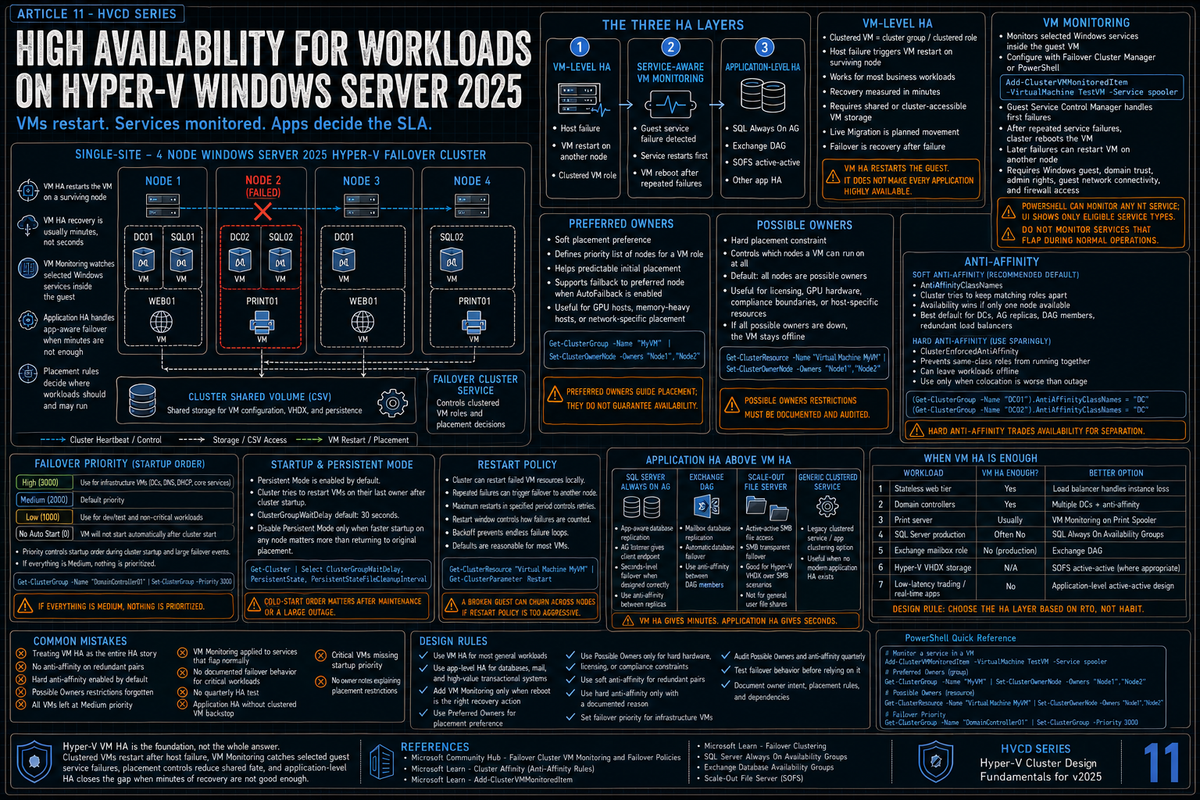
Article 11 in the Hyper-V Cluster Design Fundamentals for Windows Server 2025 series. This article covers high availability for workloads on Hyper-V: VM level HA mechanics, cluster VM monitoring with service awareness, preferred and possible owners, antiaffinity (soft and enforced), failover priority levels, application level HA on top of VM HA, when VM HA is enough, when it is not, and the HA design mistakes that look fine until the failover that proves they were not.
VM level HA is the easy part. The cluster restarts a VM on another node when the host fails. That alone solves most availability problems and it is what most workloads actually need. The harder questions are: what about a VM that is up but the application inside it is down, what about workloads that need application aware failover, where do you place VMs to spread blast radius, and what failover policies do you set so the cluster does the right thing under stress.
The point of this article is to cover the HA design choices that the cluster offers and the layering of HA strategies on top of each other. The default settings work for most workloads. The exceptions are the ones that cause expensive incidents, and they are the ones worth thinking about deliberately.
VM level HA: what the cluster does by default
When a Hyper-V VM is added to a failover cluster (the cluster role for the VM is created), the cluster takes responsibility for keeping the VM running. The default behavior:
- If the clustered VM resource fails or the VM stops unexpectedly, the cluster attempts recovery based on the VM role settings. Guest service failures require VM Monitoring or application level HA.
- If the host fails, the VM is restarted on a surviving host.
- If the host is gracefully evacuated (drain, maintenance mode), the VM live migrates to another host.
Per the Microsoft Community Hub "Understanding Hyper-V Virtual Machine (VM) Failover Policies" post on the Failover Clustering blog, when there is a failure of a node, VMs are spread across the remaining cluster nodes and distributed to the nodes hosting the fewest VMs. The cluster takes one VM at a time, finds the surviving node with the lowest count, places the VM, then moves to the next.
The cluster throttles VM startup to avoid boot storms after a node failure. Verify the current concurrency behavior against Microsoft failover policy documentation for the Windows Server version you operate. The general idea: VMs are started in batches rather than all at once, so the host CPU, memory, and underlying storage are not overwhelmed.
This default behavior is correct for most workloads. The VM goes down with the host, and the VM comes back somewhere else. Application sessions are interrupted, and clients reconnect. For stateless web tiers, file servers, print servers, jump hosts, monitoring infrastructure, and most line of business workloads, this is enough.
VM monitoring: service awareness
Per Microsoft Learn, Failover Clustering provides VM Monitoring, which allows the host cluster to monitor services or ETW events inside a clustered guest VM and take recovery actions when a service fails or the event fires.
The mechanics:
- You configure one or more services or ETW events inside the VM as monitored items, either through Failover Cluster Manager or with
Add-ClusterVMMonitoredItem. - If the monitored service fails or the event occurs, the cluster responds based on the VM resource failover configuration, such as restarting the VM.
The PowerShell example documented across Microsoft sources:
Per Microsoft Learn, the Failover Cluster Manager UI only shows services that run in their own process plus a small set of exempted services. PowerShell can monitor any NT service without restriction.
Requirements per Microsoft documentation
- Both the Hyper-V hosts and the guest VM must be running supported versions of Windows Server (the original feature was introduced in Windows Server 2012 per Microsoft documentation)
- The host and guest operating systems must be in the same domain or in trusting domains
- The Failover Cluster administrator must be a member of the local administrators group inside the VM
- The cluster must have network connectivity to the guest operating system via the virtual network adapter
- The relevant firewall rule inside the guest must be enabled
Per Microsoft documentation, VM Monitoring relies on Windows specific integration components and is documented for Windows guests. Linux guest VM monitoring at this level is not directly supported by the Failover Cluster VM monitoring feature.
When to use it
VM monitoring is a middle ground between pure VM HA (the host died, restart the VM) and full application aware HA (the application has its own clustering). It catches the case where the VM is up but a critical service inside has crashed and is not coming back. It is reasonable for:
- Print Spooler on print servers
- SMB Server services on file servers (where the file server is not running on Scale Out File Server)
- Custom NT services that the workload depends on
- IIS on web servers where the site cannot be accessed via the web tier load balancer health probe
Use it carefully. A VM monitor that triggers a reboot of a busy production VM during normal operations because of a transient service issue creates more impact than it prevents. Test the recovery action behavior in a non production environment first.
Preferred owners
Per Microsoft Learn (Set-ClusterOwnerNode) and the Microsoft Community Hub failover policies post, Preferred Owners is a property of cluster groups (which is what a clustered VM technically is) that defines a priority list of nodes the VM should run on. The cluster walks the preferred owners list when placing a VM, overriding the default behavior of selecting the node currently hosting the fewest VMs.
What preferred owners gets you:
- VMs return to their preferred node after a failover (when the preferred node comes back) if AutoFailback is enabled
- Predictable initial placement when VMs come up after cluster cold start
- The ability to keep VMs together with hosts that have specific resources (GPU enabled hosts, high memory hosts, hosts attached to specific network segments)
The PowerShell commands (per the cluster affinity Microsoft Learn page and the Microsoft Community Hub references):
Possible owners
Possible Owners is the harder constraint. Per Microsoft Learn, Set-ClusterOwnerNode controls possible owners for resources and preferred owners for clustered roles. Use possible owners as a hard placement constraint: by default, all cluster nodes are possible owners. Restricting possible owners means the VM will never run on the excluded nodes, even when those are the only ones available.
What possible owners gets you:
- Workload isolation by license boundary (some software is licensed per host where it runs; restricting possible owners limits the licensed host count)
- Hardware specific placement (GPU workloads on GPU enabled hosts only)
- Compliance separation (workloads that must run on PCI scoped hosts only, for example)
The PowerShell commands:
If all possible owners for a VM are down, the VM stays offline regardless of cluster capacity available elsewhere. Use possible owners deliberately and document why a VM has restricted owners. The most common operational mistake with possible owners is restricting them and then forgetting; six months later somebody is troubleshooting why a VM did not fail over and the answer is a possible owners list nobody remembered setting.
Antiaffinity
Per Microsoft Learn (Cluster affinity), failover clustering uses antiaffinity to keep specified roles apart from each other. The two flavors:
AntiAffinityClassNames (soft)
Per Microsoft Learn, AntiAffinityClassNames is a soft block. The cluster tries to keep the specified roles apart, but if it cannot (because there is only one node available, for example), it will still allow them to run on the same node. This is the right setting for most antiaffinity needs because high availability of the workloads takes precedence over the placement preference.
A common use case: keep domain controller VMs on separate hosts so a single host failure does not take down all domain controllers.
The PowerShell commands:
Both VMs now share the AntiAffinityClassNames value "DC" and the cluster tries to keep them on different hosts.
ClusterEnforcedAntiAffinity (hard)
Per Microsoft Learn, ClusterEnforcedAntiAffinity is a cluster level property that turns the soft block into a hard block. With it set, the cluster will prevent at all costs any of the same AntiAffinityClassNames values from running on the same node, even if that means leaving one of the groups offline.
To check the current state:
Per Microsoft Learn, the default is 0 (disabled, soft antiaffinity only). Setting it to 1 enables enforcement.
Per Microsoft Learn, in a two node scenario with ClusterEnforcedAntiAffinity enabled, if one node is down, both groups will not run. That is by design and that is exactly the operational risk: hard antiaffinity guarantees separation but at the cost of availability when capacity is constrained. Use it only when colocation is genuinely worse than one of the workloads being offline.
When to use which
- Soft (AntiAffinityClassNames). The default for almost every antiaffinity scenario. Keep DCs apart, keep DAG members apart, keep cluster nodes of guest clusters apart, but do not block availability when capacity is tight.
- Hard (ClusterEnforcedAntiAffinity). Only when running together causes worse problems than one being offline. Some PCI compliance scenarios. Some workloads where shared host fate is contractually prohibited. Most environments should leave this disabled.
Failover priority
Per the Microsoft Community Hub failover policies post, clustered VMs have a priority setting that determines start order during cluster startup and after node failures. The priorities (settable via Failover Cluster Manager or PowerShell):
- High. Start first. The most critical workloads get this.
- Medium. Default. Most VMs.
- Low. Start last.
- No Auto Start. The VM is clustered for live migration and management benefits but does not automatically restart on failover. Useful for low priority VMs you do not necessarily want to fail over but want clustered for live migration.
Set priority through Failover Cluster Manager, or set the clustered role's Priority property in PowerShell after validating the values in your target Windows Server version:
Use the documented priority levels in Failover Cluster Manager or PowerShell. Do not invent intermediate priority values unless the Microsoft source explicitly supports them.
The pragmatic application:
- High priority for infrastructure VMs (domain controllers, monitoring infrastructure, certificate authorities, RDS connection brokers)
- Medium priority for production workloads (the default)
- Low priority for development, test, and non critical workloads
- No Auto Start for VMs that should not come up automatically (specific batch processing VMs, scratch test VMs)
The point of priority is to control startup order during cluster cold start or large failover events. The high priority workloads come up first and are stable before the medium priority workloads start contending for resources.
Persistent mode
Per the Microsoft Community Hub failover policies post, when a cluster is shut down and restarted, clustering attempts to start VMs back on the last node they were hosted on. This is the Persistent Mode setting and is enabled by default. The default amount of time the cluster service waits for the original node to rejoin is 30 seconds, configurable via the cluster common property ClusterGroupWaitDelay.
The implication: after a planned cluster cold start, VMs return to their original hosts when those hosts come up. This is usually correct because it preserves the placement layout the operations team set up. For high priority VMs where you cannot wait, you may choose to disable Persistent Mode so the VM starts on the first available node rather than waiting for its original home.
Application level HA on top of VM HA
VM level HA gives you "the workload comes back somewhere within a few minutes." Some workloads need better than that.
SQL Server Always On Availability Groups
SQL Server AG provides application aware replication and failover. The design on Hyper-V:
- Two or more SQL Server VMs, each with their own database instance, replicating via AG
- Antiaffinity (AntiAffinityClassNames) keeps the AG VMs on separate hosts
- The AG listener provides a single connection point to clients
- Failover happens at the AG layer (synchronous replicas can fail over with no data loss; asynchronous replicas have an RPO based on replication lag)
What this gets you over VM HA alone: SQL Server AG can reduce the application outage window compared to VM restart when replicas are synchronized and automatic failover is configured. Client reconnect behavior, listener configuration, quorum, and the application stack still matter.
Exchange DAG
Exchange Database Availability Groups provide similar app aware replication for mailbox databases. The Hyper-V design is the same: multiple Exchange VMs, antiaffinity keeps them on separate hosts, the DAG handles replication and failover at the application layer.
For both SQL AG and Exchange DAG, the VM level HA still has value as a backstop. If the entire VM fails (not just the application), the cluster restarts the VM and the AG or DAG reestablishes the replica.
Scale Out File Server
Per Microsoft Learn, Scale Out File Server (SOFS) provides SMB access from all cluster nodes. All nodes serve client requests simultaneously. A node failure redirects clients to surviving nodes through SMB transparent failover. Client impact is reduced, but workload behavior still depends on the client, SMB path, and application.
SOFS is the right answer when the workload is file server access (Hyper-V VHDX storage on SMB shares is the canonical example, also useful for some shared application data scenarios). It is not the right answer for general purpose user file shares; use a traditional clustered file server for those.
Generic clustered services
For applications without their own HA mechanism, Failover Clustering supports generic services and generic applications as cluster resources. The cluster monitors the service or application, detects failure, and fails over to another node. This is dated technology compared to modern app aware HA but it still has uses for legacy applications that need to be made highly available.
When VM HA is enough versus when it is not
| Workload | VM HA enough? | Better option |
|---|---|---|
| Stateless web tier | Yes (load balancer in front handles instance failure) | VM HA is fine |
| File server (general user shares) | Yes | Traditional clustered file server, or SOFS for the right scenarios |
| Domain controllers | Yes (use multiple DCs with antiaffinity) | VM HA plus AD's own multi master replication is the design |
| Print servers | Yes (with VM Monitoring on the Spooler service) | VM HA plus monitored service |
| Jump hosts and bastion VMs | Yes | VM HA is fine |
| SQL Server (production) | Often not | SQL Server Always On Availability Groups |
| Exchange Server | Not for production mailbox roles | Exchange DAG |
| Hyper-V VHDX storage | Not really applicable here (it is the storage tier) | SOFS serving from all cluster nodes |
| Real time trading or low latency apps | No, the failover window is too long | App level HA at the application tier, plus active active design |
| Critical batch processing | Mostly | VM HA plus checkpointing inside the application so partial work survives restart |
The rule: VM HA usually means a restart based recovery window. App level HA can reduce that window when the application replicas, quorum, listeners, and client reconnect behavior are designed correctly. Most workloads do not need that reduction, but the ones that do are usually the ones where the cost of unavailability is concentrated (databases, mail, high value transactional systems). Identify those workloads early and put the right HA layer underneath them.
Restart policy
Cluster Resource Restart settings control what the cluster does when a clustered resource fails. For VMs, the relevant settings are restart attempts within a window and the action when those attempts fail.
The defaults are reasonable for most VMs: attempt restart, fail over to another node if the restart attempts within the window are exhausted. The settings to think about:
- Maximum restarts in specified period. How many times to attempt a local restart before giving up and failing over.
- Period. The window over which the restart count is measured.
- If restart is unsuccessful, fail over all resources in this Role. Whether to fail over the entire role or just mark it failed.
- If all the restart attempts fail, begin restarting again after the specified period. Backoff behavior.
The defaults work for most VMs. The case where you want to think about it explicitly: VMs that fail repeatedly due to a configuration issue inside the guest will cycle through nodes if the cluster keeps restarting them. Setting a more aggressive backoff or a lower maximum restarts can prevent the failing VM from disrupting healthy nodes.
The HA design mistakes that bite you later
Treating VM HA as the entire HA story
VM HA usually means a restart based recovery window. For databases, mail, and high value transactional workloads, that window is often too long and the cost of the gap is high. Identify which workloads need app level HA and design accordingly.
No antiaffinity on redundant pairs
Two domain controllers on the same Hyper-V host is not redundancy. AntiAffinityClassNames is the cheap fix. Apply it to every pair or set of redundant infrastructure: DCs, AG replicas, DAG members, redundant load balancers, redundant monitoring servers.
Hard antiaffinity (ClusterEnforcedAntiAffinity) by default
The hard variant is appropriate for specific compliance and licensing scenarios. As a default, it produces the wrong tradeoff (separation over availability) for most workloads. Stick with soft antiaffinity unless you have a documented reason for hard.
Possible owners restricting where you forgot
Setting possible owners and forgetting is a classic operational hazard. Document the reason in the VM description or cluster role notes. Audit possible owners restrictions quarterly. The most painful failovers are the ones that did not happen because of a possible owners list nobody remembered.
All VMs at medium priority
If everything is medium, nothing is. During cluster cold start or large failover events, the order of VM startup matters. High priority for infrastructure VMs (DCs, monitoring, certificate authorities) gets them up before the workloads that depend on them.
VM Monitoring on services that flap normally
VM Monitoring rebooting a busy production VM because of a transient service issue is worse than not monitoring. Test the recovery action behavior in non production. Apply VM Monitoring to services where a true failure is rare and a reboot is the right recovery, not to services that come up and down as part of normal operation.
No documented failover behavior for critical workloads
The runbook for a critical workload should include: what happens when the host fails, what happens when the application fails inside the VM, what happens when storage fails, what the expected recovery time is, what manual intervention is required if the automatic path does not work. If nobody can answer those questions, the HA design has not been tested and the first real failover will be the test.
Skipping the HA test
HA designs that have never been exercised do not work as expected. Plan for a test failover at least quarterly for critical workloads. Do it during a controlled window, not during an actual incident. If the test reveals problems, fix them before the unplanned failover finds them for you.
Application HA without VM HA underneath
SQL AG and Exchange DAG fail over fast at the application layer but they still need the VM to be running. If a host fails and the AG primary VM stays down because nobody clustered the VM, the AG synchronous secondary still takes over but the VM that died now has to be rebuilt manually. Both layers of HA matter.
Key Takeaways
- VM level HA is enough for most workloads. The cluster restarts the VM on a surviving host on failure. For stateless web tiers, file servers, jump hosts, monitoring, and most line of business workloads, this is the right answer.
- VM Monitoring catches service failures inside the guest. Per Microsoft Learn, Add-ClusterVMMonitoredItem monitors a service or ETW event inside a clustered VM; if the monitored item fails, the cluster responds based on the VM resource failover configuration. Configure with
Add-ClusterVMMonitoredItem -VirtualMachine X -Service Y. Requires Windows guest, domain trust, and firewall rule. - Preferred Owners is a soft preference; Possible Owners is a hard constraint. Use preferred owners for placement preferences and predictable startup. Use possible owners only for licensing or hardware constraints, and document the reason.
- AntiAffinityClassNames is a soft block; ClusterEnforcedAntiAffinity is a hard block. Per Microsoft Learn, default to soft antiaffinity for redundant pairs (DCs, AG replicas, DAG members). Use the hard variant only when colocation is genuinely worse than offline.
- Failover priority controls startup order. Per Microsoft Community Hub failover policies post, set priority using the documented levels (High, Medium, Low, No Auto Start) in Failover Cluster Manager or PowerShell. Set infrastructure VMs to High so they start before the workloads that depend on them.
- VM startup is throttled to avoid boot storms. The cluster batches VM starts rather than starting everything at once after a node failure. Verify the current concurrency behavior against Microsoft failover policy documentation for the Windows Server version you operate.
- App level HA where it matters. SQL Always On AG, Exchange DAG, SOFS serving from all cluster nodes. App level HA often reduces outage compared to VM restart, but recovery time is workload and configuration dependent. Identify which workloads need application aware HA.
- Both layers of HA matter together. AG and DAG do not replace VM HA; they layer on top of it. Cluster the VMs that host the AG and DAG roles too.
- Persistent Mode returns VMs to their original hosts after cold start. Per the Microsoft Community Hub failover policies post, default 30 second wait via ClusterGroupWaitDelay. Disable for high priority VMs that cannot wait.
- Test the failover. HA designs that have never been exercised do not work as expected. Quarterly test failover for critical workloads, in a controlled window.