

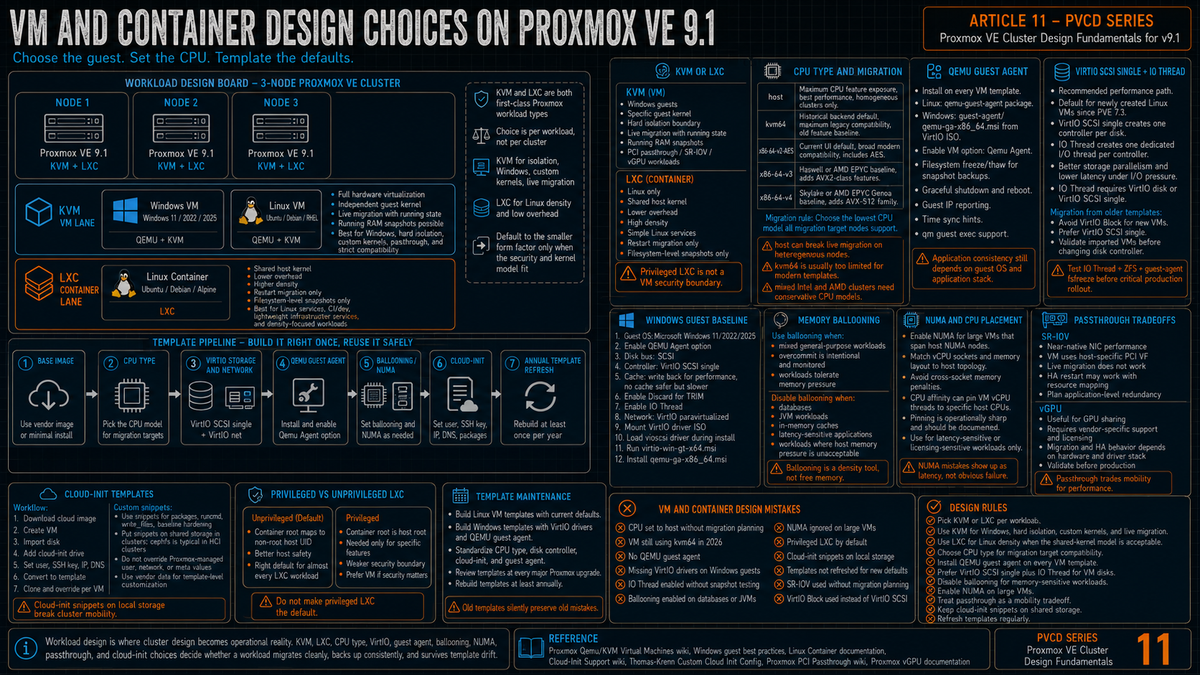
Article 11 in the Proxmox VE Cluster Design Fundamentals for v9.1 series. PVCD-10 covered capacity planning and lifecycle. This article covers VM and container design choices: KVM versus LXC and when each is the right tool, CPU type choices (host versus kvm64 versus the x86-64-v* series) and the live migration implications, QEMU guest agent, VirtIO drivers and the SCSI single plus IO Thread default, memory ballooning, NUMA pinning, SR-IOV and vGPU options, cloud-init templates, and the design mistakes that turn into 2 AM incidents.
The cluster design articles up to now have focused on the cluster itself: networking, storage, security, backup, monitoring, capacity. This one drops down to the workloads. Most of these choices are made once at VM creation time and never revisited until something breaks or migrates poorly. Getting them right at template time saves an enormous amount of cleanup work later.
Series target version is Proxmox VE 9.1 on Debian 13 Trixie. Every claim below is sourced to the Qemu/KVM Virtual Machines wiki, the Windows guest best practices wikis, the Linux Container chapter of the Administration Guide, the Cloud-Init Support wiki, the Thomas Krenn Custom Cloud Init Config wiki, and current Proxmox documentation.
KVM versus LXC: when each is the right tool
Proxmox VE supports two guest types: KVM virtual machines (full hardware virtualization via QEMU) and LXC containers (OS level isolation sharing the host kernel). Per the Proxmox docs, both are first class citizens and can coexist on the same node. The choice is per workload.
When KVM is the right answer
- Windows guests. LXC does not run Windows; Windows requires a full VM.
- Workloads that need a specific kernel (different version, different patches, custom modules).
- Workloads that need full hardware emulation (legacy software with specific device expectations).
- Hard security or compliance boundaries where the shared kernel of LXC is unacceptable.
- Live migration with running state. Live migration is supported for VMs; LXC supports restart migration only per the Proxmox docs.
- Snapshots that capture running RAM state. LXC snapshots are filesystem level only.
- Workloads where the operator does not want to manage container quirks (cgroup version drift, AppArmor profiles, idmap for unprivileged).
When LXC is the right answer
- Linux workloads where you want lower overhead than a VM. LXC shares the host kernel; no hypervisor per container, no virtualized memory management, no emulated devices.
- High density Linux workloads. Without the per VM hypervisor overhead, the same node can run meaningfully more containers than VMs in the same RAM budget.
- Simple Linux services (DNS, DHCP relays, internal HTTP proxies, log collectors, small databases, monitoring agents).
- Development and CI workloads where containers spin up and down constantly.
- Workloads that benefit from direct disk access behavior without the virtio block layer.
The pragmatic split
Most production Proxmox clusters end up with a mix. Anything that needs Windows, hard isolation, or runtime kernel control is a VM. Everything else that runs on Linux can be a container if density matters. The default for a new workload should be the smaller form factor (LXC for Linux) unless one of the VM requirements above applies.
CPU type: the choice that affects live migration
Per the Proxmox Qemu/KVM Virtual Machines wiki, the CPU type setting controls which CPU features the VM sees. The choices and the implications:
host
Per the wiki: if you want an exact match, you can set the CPU type to host in which case the VM will have exactly the same CPU flags as your host system. This has a downside though. If you want to do a live migration of VMs between different hosts, your VM might end up on a new system with a different CPU type or a different microcode version. If the CPU flags passed to the guest are missing, the QEMU process will stop.
host is the right choice when:
- The cluster is homogeneous (same CPU model, same microcode) and likely to stay that way.
- The workload demands maximum CPU performance and uses specific instruction set extensions (AVX-512 for HPC, AES-NI for crypto heavy workloads).
- You explicitly do not need cross node live migration.
kvm64 (the historical default)
Per the Qemu/KVM docs, kvm64 is the backend default when cputype is not defined. It is compatible with very old x86_64 hosts, but it exposes an old CPU feature baseline.
kvm64 still has a use: maximum compatibility with extremely heterogeneous clusters or with very old guest operating systems. For modern workloads it is too dumbed down.
x86-64-v2-AES (the current UI default)
Per the wiki verbatim: the UI default when creating a new VM is x86-64-v2-AES, which requires a host CPU starting from Westmere for Intel or at least a fourth generation Opteron for AMD. Per the same wiki, x86-64-v2-AES adds the +aes flag over x86-64-v2 (which itself adds +cx16, +lahf-lm, +popcnt, +pni, +sse4.1, +sse4.2, +ssse3 over kvm64).
This is the sane default for almost every cluster: meaningfully more modern than kvm64, broadly compatible with many modern server CPUs, and includes AES-NI for crypto performance.
x86-64-v3 and x86-64-v4
Per the wiki:
- x86-64-v3. Intel Haswell or later, AMD EPYC or later. Adds +avx, +avx2, +bmi1, +bmi2, +f16c, +fma, +movbe, +xsave over x86-64-v2-AES.
- x86-64-v4. Intel Skylake or later, AMD EPYC v4 Genoa or later. Adds the +avx512f, +avx512bw, +avx512cd, +avx512dq, +avx512vl flags over x86-64-v3.
x86-64-v3 is the right choice for modern clusters where every node has Haswell or later. AVX2 in particular benefits a lot of modern compiled software. x86-64-v4 is genuinely only useful when the workload uses AVX-512 and the cluster has uniformly Skylake or later silicon.
Per the Qemu/KVM docs: if you care about live migration and have only Intel CPUs or only AMD CPUs, choose the lowest generation CPU model that all cluster nodes support. If you have a mixed Intel and AMD cluster, choose the lowest compatible virtual QEMU CPU type (x86-64-v2-AES is usually the safe answer). If you do not care about live migration or have a homogeneous cluster, set CPU to host for maximum performance.
QEMU guest agent
Per the Qemu/KVM wiki and the Windows guest best practices wikis, the QEMU guest agent runs inside the guest OS and provides a communication channel between the hypervisor and the guest. It is what makes the following work:
- Filesystem freeze and thaw during snapshot backups for filesystem data consistency.
- Graceful guest shutdown and reboot from the Proxmox UI or API.
- IP address reporting from the guest (the IP shown in the VM summary panel).
- Time sync hints.
- qm guest exec for running commands inside the guest from the host.
On Linux guests, install the package:
On Windows guests, per the Windows guest best practices wikis: the QEMU Guest Agent installer is located on the VirtIO driver CD under guest-agent\qemu-ga-x86_64.msi. Run that installer; the service starts automatically.
The agent has to be enabled on the VM side too (System tab, Qemu Agent checkbox, or qm set <vmid> --agent enabled=1). Per the Windows wiki, if you enabled the Qemu Agent option for the VM the mouse pointer will probably be off after the first boot; installing the guest agent remedies this.
VirtIO drivers and the SCSI single plus IO Thread default
Per the Qemu/KVM wiki: a SCSI controller of type VirtIO SCSI single and enabling the IO Thread setting for the attached disks is recommended if you aim for performance. This is the default for newly created Linux VMs since Proxmox VE 7.3. Each disk will have its own VirtIO SCSI controller, and QEMU will handle the disks IO in a dedicated thread.
The mechanics
Per the Qemu/KVM wiki: with IO Thread enabled, QEMU creates one I/O thread per storage controller rather than handling all I/O in the main event loop or vCPU threads. The benefits are better work distribution and utilization of the underlying storage, and reduced latency (hangs) in the guest for very I/O intensive host workloads, since neither the main thread nor a vCPU thread can be blocked by disk I/O.
Per the same wiki: the IO Thread option can only be used when using a disk with the VirtIO controller, or with the SCSI controller, when the emulated controller type is VirtIO SCSI single. Standard VirtIO SCSI (the older default) shares a single controller and a single I/O thread across all attached disks. VirtIO SCSI single creates one controller per disk, which combined with IO Thread gives one I/O thread per disk.
Windows guest install workflow
Per the Windows 2022 and Windows 2025 guest best practices wikis verbatim:
- Create a new VM, select "Microsoft Windows 11/2022/2025" as Guest OS and enable the "Qemu Agent" in the System tab.
- For the virtual hard disk, select SCSI as bus with VirtIO SCSI single as controller. Set Write back as cache option for best performance (the No cache default is safer but slower) and tick Discard to optimally use disk space (TRIM). Enable IO Thread.
- For network, set VirtIO (paravirtualized).
- Mount the VirtIO driver ISO as a second CD/DVD drive during install.
- During Windows setup, load the VirtIO SCSI driver from the appropriate
vioscsi\<version>\amd64folder on the driver CD to expose the disk. - After install, run
virtio-win-gt-x64.msifrom the driver CD to install the remaining drivers (network, balloon, etc). - Install the QEMU Guest Agent from
guest-agent\qemu-ga-x86_64.msi.
This workflow is repeated identically for Windows 10, Windows 11, Windows Server 2019, 2022, and 2025 per the corresponding guest best practices wikis. The folder names under the driver CD change with the Windows version (w10, 2k22, 2k25, etc).
Some reported combinations of IO Thread, ZFS, and QEMU Guest Agent filesystem freeze have caused snapshot trouble. Validate snapshot and backup behavior in a non production VM with the same storage, guest agent, and package versions before enabling IO Thread on critical production workloads.
Memory ballooning
Per the Qemu/KVM wiki and the Windows guest best practices wikis, the VirtIO Balloon Driver allows the hypervisor to reclaim unused memory from the guest dynamically. The driver inside the guest can shrink the guest's available memory when the host needs RAM elsewhere, and grow it back when memory is available again.
When to use ballooning
- Mixed workloads on a single node where memory demand fluctuates and you want overall efficiency over per VM determinism.
- Dev or test environments where memory contention is acceptable in trade for higher VM density.
- Linux guests where ballooning is well behaved (the kernel cooperates with the balloon driver).
When to disable ballooning
- Latency sensitive workloads (databases, real time applications). Balloon pressure can cause unexpected latency spikes when the guest has to give back memory.
- Workloads with strict memory guarantees (JVMs sized to a specific heap, in memory databases).
- Windows guests in production where ballooning behavior has been historically less predictable than Linux.
- Any VM where the host is sized for the full configured memory of every VM (no overcommit), in which case ballooning serves no purpose.
Set the memory option to fixed (uncheck Ballooning Device, or set balloon=0 in the VM config) for VMs that should not balloon. The trade off is that the configured memory is reserved regardless of guest usage.
NUMA and CPU pinning
Per the Qemu/KVM wiki, NUMA is a real consideration on multi socket hosts and large single socket hosts with multiple NUMA nodes (modern AMD EPYC, large Intel Xeon Scalable).
Enable NUMA on the VM
For VMs larger than one NUMA node on the host, enable NUMA in the VM hardware settings (or numa=1 in the config). Per the wiki, this makes the VM aware of NUMA topology and lets the guest scheduler align memory access patterns with vCPU placement.
vCPU sockets and cores
Per the Qemu/KVM wiki, the sockets and cores settings on the VM affect how the guest sees its CPUs and how NUMA awareness works. The rule of thumb: for a VM that fits within one host NUMA node, configure one socket. For a VM that spans multiple NUMA nodes, configure multiple sockets matching the spread.
CPU pinning (taskset based)
Proxmox does not have a first class CPU pinning UI for VMs. Per the Qemu/KVM docs, CPU affinity can be controlled at the VM config level via the affinity option, which uses taskset:
This pins the VM's QEMU process to the specified host CPUs. Use with NUMA awareness: pin to CPUs on the same NUMA node as the memory the VM uses.
Pinning is a sharp tool. It removes flexibility from the kernel scheduler. Use it for specific workloads where measured latency is the priority (real time trading, telco workloads, specific database tiers); leave it off for general workloads.
SR-IOV and vGPU
For network and GPU workloads where the VM needs direct hardware access, Proxmox supports both SR-IOV (Single Root I/O Virtualization) for NICs and vendor specific vGPU mechanisms for GPUs.
SR-IOV for NICs
Per the Proxmox PCI Passthrough wiki and SR-IOV documentation, SR-IOV lets a single physical NIC expose multiple Virtual Functions (VFs) that can be passed through to individual VMs. Each VF appears as a separate PCI device with direct hardware access (no virtio bridge between the VM and the NIC).
Use cases: workloads with extreme network performance requirements (load balancers, NFV, high frequency trading), where the virtio network overhead is unacceptable. Pre requisite: the host NIC must support SR-IOV, the host BIOS must have IOMMU and VT-d (or AMD-Vi) enabled, and the kernel must enable SR-IOV for the NIC at boot.
Trade off: SR-IOV passes hardware directly to the VM as a PCI device. Per the Proxmox PCI Passthrough wiki, live migration of a VM with an SR-IOV VF passed through does not work. The PCI device is bound to the host and cannot transparently move. What does work is HA recovery (restart on another node) when resource mapping is configured so the PCI device shows up at the same identifier on every node in the cluster.
vGPU
Per the Proxmox vGPU and PCI Passthrough wikis, vGPU support depends on the GPU vendor. NVIDIA vGPU support depends on the Proxmox version, NVIDIA host driver branch, licensed NVIDIA vGPU subscription, supported hardware, and guest driver version. Verify the current Proxmox and NVIDIA compatibility matrix before designing around it.
AMD MxGPU and Intel SR-IOV based GPU virtualization have different host driver and licensing models. The right answer is vendor specific; consult the GPU vendor documentation alongside the Proxmox passthrough wiki.
For workloads that need GPU acceleration but not the full GPU isolation of vGPU, simple PCI passthrough of an entire GPU to a single VM is also supported and is the simplest option. The trade off is that the GPU is dedicated to one VM; no sharing.
Cloud-init templates
Per the Cloud-Init Support wiki, Proxmox VE has first class cloud-init support. Cloud-init is a multi distribution package that handles early initialization of a virtual machine instance: hostname, network configuration, SSH keys, user creation, package installation, and arbitrary first boot scripts.
The Proxmox cloud-init workflow
Per the Cloud-Init Support wiki:
- Download a distribution's cloud image (Debian, Ubuntu, Rocky Linux, etc).
- Create a VM from that image with
qm createand import the disk. - Add a cloud-init drive:
qm set <vmid> --ide2 <storage>:cloudinit. - Set the basic cloud-init parameters: user, password or SSH key, IP config, DNS.
- Convert the VM to a template:
qm template <vmid>. - Clone the template for each new VM and override per VM cloud-init settings.
Custom cloud-init via snippets
Per the Cloud-Init Support wiki and the Thomas Krenn Custom Cloud Init Config in Proxmox VE wiki, the basic Proxmox cloud-init UI covers user, network, and meta data. For more advanced configuration (cloud-config YAML with packages, runcmd, write_files, etc), use snippets:
Per the Thomas Krenn wiki: for cluster systems, the snippets must be on shared storage (cephfs is the usual choice) so the VM can start on any node. If the custom cloud-init config is on local storage, the VM cannot be started on other servers, since the config reference would be invalid.
Per the Cloud-Init Support wiki: Proxmox has its own cloud-init settings (user, network, meta) that get customized on the fly for each instance created from a template. These should not be overridden in a custom template, since they are populated per VM at clone time. The vendor data field is the safe one to override in templates, since Proxmox does not populate it. cloud-config is first wins; if the user configuration from Proxmox includes a users section, a users section in your vendor cloud config will be ignored.
Practical guidance: put per VM identity (hostname, IP, SSH key) in the standard cloud-init parameters. Put fleet wide configuration (package install, baseline hardening, agent install, time zone, locale) in a vendor snippet on shared storage.
Generating a base config
Per the Cloud Init docs, you can extract the default config Proxmox generates for a VM:
This is useful for building a vendor snippet that complements (rather than conflicts with) the Proxmox managed cloud-init parameters.
Privileged versus unprivileged containers
Per the Proxmox LXC documentation, containers come in two flavors:
- Unprivileged (the default). Container root maps to a non root UID on the host, typically starting at 100000. This sharply reduces host impact if the container is compromised, but it is still a shared kernel security boundary. The right default for almost every LXC workload.
- Privileged. Container root is host root. Required for a few specific workloads (NFS server inside the container, certain Docker scenarios, specific kernel features) but a much weaker security boundary.
Per the Proxmox docs: only switch to privileged when a specific feature actually requires it, and prefer running that workload in a VM if security matters. The convenience of privileged containers regularly costs more than the operational cost of running the same workload in a VM.
The VM and container design mistakes that cost you later
CPU set to host without considering live migration
The VM gets created with CPU type host because somebody read that it is faster. Six months later, a node fails and the VM cannot migrate to a different generation host because the new host is missing flags the VM is using. The QEMU process stops as documented in the Qemu/KVM wiki. Choose host only on homogeneous clusters or when you accept the migration constraint explicitly.
VM created with kvm64 in 2026
The opposite mistake. The VM was cloned from an old template that was created when kvm64 was the default. The modern OS inside has been running on a Pentium 4 feature set for years. Performance is meaningfully worse than it should be. Audit existing VM CPU types when you upgrade Proxmox; consider updating templates to x86-64-v2-AES or x86-64-v3 as appropriate.
No QEMU guest agent
Without QEMU Guest Agent, Proxmox cannot request guest filesystem freeze and thaw during snapshot backups, cannot report guest IP data through the agent, and guest shutdown commands may time out. Application consistency still depends on the guest OS and application stack. Install the guest agent on every Linux and Windows VM as part of the template, not as an afterthought.
VirtIO drivers missing on Windows guests
The Windows VM was created with an IDE or SATA disk because the installer could not find the disk on VirtIO. Performance is meaningfully worse than it should be. Proxmox docs recommend VirtIO devices for performance and maintenance. Use VirtIO SCSI single from the start with drivers loaded during install.
IO Thread enabled without testing snapshots
IO Thread is the recommended default but has reported interactions with ZFS plus QEMU Guest Agent fsfreeze on certain Proxmox and ZFS version combinations. Test backup and snapshot behavior in a non production VM with the same storage, guest agent, and package versions before enabling on critical production workloads.
Ballooning enabled on databases and JVM workloads
The default behavior gives a balloon device. The database VM hits an unexpected memory pressure event under host load and starts swapping or evicting cache. Disable ballooning on memory sensitive VMs explicitly.
NUMA not configured on large VMs
A VM with 32 vCPUs and 128 GB RAM runs on a host with two NUMA nodes of 16 cores and 64 GB each. Without NUMA aware configuration, half the memory accesses cross the inter socket interconnect at a meaningful latency cost. Enable NUMA and configure sockets to match the host topology for VMs that span NUMA nodes.
Privileged LXC by default
The container was created as privileged because something did not work as unprivileged and the operator did not investigate further. The host now runs a Linux workload with shared kernel and host root inside the container. Use unprivileged by default; only switch to privileged when the specific limitation is identified and the security trade off is accepted.
Cloud-init snippets on local storage in a cluster
Per the Thomas Krenn Custom Cloud Init Config wiki: if the custom cloud-init config is on a local data store, the VM cannot be started on other servers because the config reference is invalid. Put snippets on shared storage (cephfs in the typical HCI cluster) so VMs remain HA capable across the cluster.
Templates not updated for new defaults
The Ubuntu cloud-init template was built two years ago with kvm64, no IO Thread, and ballooning enabled. Every new VM inherits that. Rebuild templates against current defaults at least annually and at every major Proxmox upgrade. Document what each template was built with.
SR-IOV without understanding migration impact
SR-IOV gives near native NIC performance to the VM. Per the Proxmox PCI Passthrough wiki, it also means live migration of the VM does not work because the VF is a host specific PCI device. HA recovery (restart on another node) works with resource mapping. Plan SR-IOV around either HA at the application layer (load balancers in front of multiple VMs) or accept that those VMs require planned offline migration windows.
VirtIO Block instead of VirtIO SCSI
Per the Qemu/KVM wiki: the VirtIO Block controller (often called virtio-blk) is an older paravirtualized controller that has been superseded by the VirtIO SCSI Controller in terms of features. Some imported VMs from older systems still use virtio-blk. SSD emulation, multi disk per controller, IO Thread per disk via SCSI single, and TRIM passthrough are all better on VirtIO SCSI. Migrate disks to VirtIO SCSI when the opportunity comes up.
Key Takeaways
- KVM versus LXC is per workload. KVM for Windows, hard isolation, custom kernels, live migration with running state. LXC for Linux density and low overhead workloads. Most production clusters end up with a mix.
- CPU type is the live migration knob. Per the Qemu/KVM wiki, host gives maximum performance but breaks cross node migration on heterogeneous hardware. UI default is x86-64-v2-AES (Westmere or Opteron G4 minimum). Choose the lowest CPU model all cluster nodes support if you care about migration.
- x86-64-v* model flags verified per the wiki. kvm64 (v1, Pentium 4 baseline), x86-64-v2 (+sse4.2 etc), x86-64-v2-AES (+aes), x86-64-v3 (+avx2 etc, Haswell or EPYC), x86-64-v4 (+avx512 family, Skylake or EPYC v4 Genoa).
- QEMU guest agent on every VM. Linux:
apt install qemu-guest-agent. Windows:guest-agent\qemu-ga-x86_64.msifrom the VirtIO driver CD. Without QEMU Guest Agent, Proxmox cannot request guest filesystem freeze and thaw during snapshot backups, cannot report guest IP data through the agent, and guest shutdown commands may time out. Application consistency still depends on the guest OS and application stack. - VirtIO SCSI single plus IO Thread is the performance default. Per the Qemu/KVM wiki, the default for newly created Linux VMs since Proxmox VE 7.3. One controller per disk, one IO thread per controller, dedicated thread per disk.
- Test IO Thread plus ZFS plus fsfreeze before production. Some reported combinations of IO Thread, ZFS, and QEMU Guest Agent filesystem freeze have caused snapshot trouble. Validate snapshot and backup behavior in a non production VM with the same storage, guest agent, and package versions before enabling on critical workloads.
- Disable ballooning on memory sensitive workloads. Databases, JVMs, in memory caches. Set fixed memory for VMs where memory pressure under host load is unacceptable.
- NUMA on large VMs. Enable NUMA on the VM and configure sockets to match the host topology when the VM spans NUMA nodes. Otherwise half the memory accesses cross the interconnect.
- Unprivileged LXC by default. Per the Proxmox LXC docs. Only switch to privileged when a specific feature requires it, and prefer a VM if security matters.
- Cloud-init snippets on shared storage in clusters. Per the Thomas Krenn wiki, snippets on local storage break HA migration. Use cephfs in HCI clusters; do not override Proxmox managed user, network, or meta values in custom templates.
- Templates need annual maintenance. Defaults change. Rebuild against current best practices at least yearly and at every major Proxmox upgrade.