

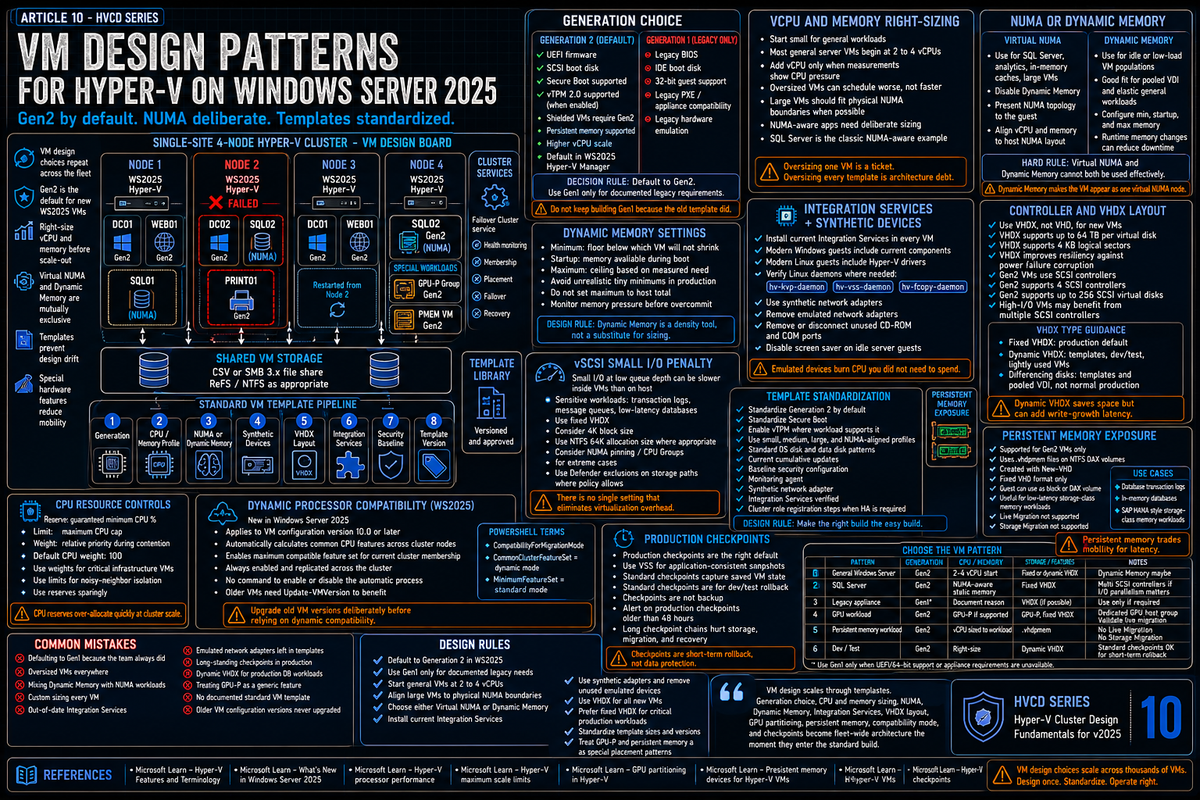
Article 10 in the Hyper-V Cluster Design Fundamentals for Windows Server 2025 series. This article covers VM design patterns at cluster scale: Generation 1 versus Generation 2 (Gen2 default in 2025), right sizing vCPUs and memory, virtual NUMA and the Dynamic Memory mutual exclusion, integration services and synthetic devices, VM templates and standardization, GPU partitioning patterns, persistent memory exposure, the small IO vSCSI penalty, and the design mistakes that compound across hundreds of VMs.
Most VM design problems are not visible at the individual VM level. One oversized SQL VM with the wrong NUMA layout is a performance ticket. Two hundred VMs built from the same bad template is an architecture problem that survives multiple cluster refreshes. The default templates the team uses, the standard CPU and memory profiles, the storage controller layout, the integration services posture, the firmware generation choice: those decisions get repeated thousands of times across the life of the cluster.
This article focuses on the VM design choices that scale. Some are Microsoft documented best practices. Some are operational lessons that show up in the patterns Microsoft and the community have published. The point is to make the standard VM build right so the bulk of your fleet is not fighting the platform.
Generation 1 versus Generation 2
Per Microsoft Learn (Hyper-V Features and Terminology), Hyper-V supports two VM generations that determine available features and virtual hardware.
| Property | Generation 1 | Generation 2 |
|---|---|---|
| Firmware | Legacy BIOS | UEFI |
| Boot device | IDE virtual hard disk or virtual floppy | SCSI virtual hard disk |
| Secure Boot | Not supported | Supported |
| vTPM 2.0 | Not supported | Supported (must be explicitly enabled per VM) |
| Shielded VMs | Not supported | Supported, and required for shielded VMs |
| Maximum vCPU (WS2025) | 64 | 2,048 (PowerShell only; UI 1,024) |
| Persistent memory exposure | Not supported | Supported via NTFS DAX volumes |
| 32 bit guest support | Yes | No |
| Legacy hardware emulation (IDE, floppy) | Yes | No |
Per Microsoft Learn (What's new in Windows Server 2025), when you create a new VM through Hyper-V Manager, Generation 2 is now set as the default option in the New Virtual Machine Wizard. That position is consistent across Microsoft Learn pages and is the right default for 2025 cluster builds. Generation 2 is also where the higher scale limits live and where the new security features (Secure Boot, vTPM 2.0, Shielded VMs) are available.
The legitimate reasons to still build Generation 1:
- 32 bit guest operating systems (rare in 2026 but still present in some industrial and legacy line of business environments)
- Guest operating systems that do not support UEFI boot (older Linux distributions, some appliance images)
- PXE boot from a legacy IPv4 boot server that has not been updated for UEFI
- Specific application or hardware emulation dependencies (IDE controllers, virtual floppy)
If none of those apply, build Generation 2.
Right sizing vCPUs
The most common VM design mistake at cluster scale is oversized VMs. VMs given more vCPUs than they need do not run faster; they often run slower because the hypervisor scheduler has to find more idle logical processors at gating points and because the VM may be forced across NUMA nodes when it would have fit inside one.
The right model is:
- Start small. Most general purpose Windows or Linux server workloads do fine with 2 to 4 vCPUs. Only scale up when actual measurements show CPU pressure inside the guest.
- Match physical NUMA boundaries when the VM grows large. A VM that fits inside a single physical NUMA node has predictable, fast memory access. A VM that spans NUMA nodes pays a remote memory penalty for any access that crosses the boundary.
- Consider what the workload actually does. NUMA aware applications (Microsoft SQL Server is the canonical example per Microsoft Learn) benefit from virtual NUMA. Single threaded or lightly threaded workloads do not.
Per Microsoft Learn (Hyper-V processor performance), when you create large VMs, memory from multiple NUMA nodes on the host is typically used. If you do not allocate virtual processors and memory from the same NUMA node, workloads might have poor performance because they cannot take advantage of NUMA optimizations. The published best practice is to align vCPU and memory allocations with physical NUMA nodes for large VMs.
Virtual NUMA and Dynamic Memory mutual exclusion
This is the single most important VM design fact in this article and it catches people out repeatedly.
Per Microsoft Learn (Hyper-V processor performance), you cannot use Virtual NUMA and Dynamic Memory features at the same time. A VM with Dynamic Memory enabled effectively has only one Virtual NUMA node, and no NUMA topology is presented to the VM regardless of the Virtual NUMA settings.
The implications:
- If your VM is running a NUMA aware workload (SQL Server, large in memory caches, certain analytics workloads), Dynamic Memory must be disabled. The VM gets static memory and a virtual NUMA topology that matches the host.
- If your VM is a candidate for Dynamic Memory (idle or low load workloads, pooled VDI per Microsoft Learn), the workload must not depend on NUMA topology. Per Microsoft Learn, Dynamic Memory is appropriate for environments with many idle or low load VMs such as pooled VDI environments.
- You cannot have both. Picking one is a workload classification decision that belongs in the VM template.
When designing the standard VM template for a workload tier, decide up front: is this tier NUMA sensitive or memory elastic? Build two templates if you have both kinds of workload. Mixing the two assumptions in one template produces VMs that are wrong for both populations.
Dynamic Memory configuration
For VMs where Dynamic Memory is the right answer, the parameters that matter are minimum, startup, and maximum.
- Minimum. The floor below which the VM will not be reduced. Set it high enough that the operating system and any always running services can function. For Windows Server guests, 1 GB minimum is the absolute floor; 2 GB is more realistic for most production workloads.
- Startup. The amount of memory the VM gets at boot. The startup value should be enough to complete OS startup and any application startup work without thrashing. Per Microsoft Learn, the Dynamic Memory feature can dynamically increase or decrease memory allocation based on minimum, startup, and maximum values.
- Maximum. The ceiling. Set it based on what the workload actually needs at peak, not what is theoretically available on the host. Setting the maximum to absurdly high values (the host memory total, for example) does not give the VM more memory; it just removes the safety net.
Per Microsoft Learn, Dynamic Memory run time configuration changes can reduce downtime and provide increased agility to respond to requirement changes. You can adjust minimum, startup, and maximum values without restarting the VM.
Integration Services and synthetic devices
Per Microsoft Learn (Hyper-V processor performance), the VM integration services include enlightened drivers for Hyper-V specific I/O devices, which significantly reduce CPU overhead for I/O compared to emulated devices. Microsoft documents the recommendation directly: install the latest version of the VM integration services in every supported VM.
The Microsoft Learn published best practices to minimize VM CPU usage:
- Install the latest version of the VM integration services
- Remove the emulated network adapter through the VM settings dialog box and use the Microsoft Hyper-V specific synthetic adapter
- Remove unused devices such as the CD-ROM and COM port, or disconnect their media
- Keep the Windows guest operating system on the sign in screen when not in use and disable the screen saver
- Review the scheduled tasks and services that are enabled by default
- Review the Event Tracing for Windows (ETW) trace providers that are on by default
- Improve server applications to reduce periodic activity (such as timers)
For Linux guests, install Linux Integration Services (LIS) where the distribution does not include them in the kernel. Modern distributions include Hyper-V drivers in the kernel and require only that the relevant daemons (hv-kvp-daemon, hv-vss-daemon, hv-fcopy-daemon) are running. Per a Microsoft Q&A discussion, the Failover Cluster VM monitoring feature relies on Windows specific integration services and does not directly support Linux guest VM monitoring.
Storage controller and disk layout
Generation 2 VMs have only SCSI controllers, which is the right answer. The remaining choices are about controller count and disk placement.
Per Microsoft Learn maximum scale limits, a Generation 2 VM supports 4 SCSI controllers and 256 SCSI virtual disks. For the vast majority of VMs, a single SCSI controller with the OS disk and a small number of data disks is sufficient. For VMs with high I/O parallelism (database servers, busy file servers), splitting disks across multiple SCSI controllers can reduce queue contention.
VHDX format
VHDX over VHD. The VHDX format supports up to 64 TB per disk (per Microsoft Learn), 4 KB logical sectors, and protections against power failure corruption. Build all VMs on VHDX from day one. The VHD format is supported for compatibility but is not the right choice for new VMs.
Fixed versus dynamic VHDX
- Fixed. Allocates the full size at creation. No on the fly expansion. Best performance and most predictable I/O latency.
- Dynamic. Allocates space as data is written. Better storage efficiency on lightly used VMs. Some performance overhead on writes that grow the file.
- Differencing. Built on a parent disk; only changes are stored in the child. Used for templates and pooled VDI. Not appropriate for general production workloads.
For production VMs, fixed VHDX is the right default. The space efficiency of dynamic disks rarely justifies the performance unpredictability for important workloads. Templates and dev test VMs can reasonably use dynamic.
Per a Microsoft Q&A discussion on WS2025 storage performance, small IO at low queue depth (4K Q1/T1 in the report) inside a Hyper-V VM can show a substantial reduction versus the same test on the bare host. The Microsoft response framed this as consistent with known limitations of the vSCSI stack (StorVSP/StorVSC) where small I/O operations with low queue depth are particularly sensitive to virtualization overhead. Latency sensitive single threaded workloads (some database transaction logs, certain message queue workloads) may see this. Tuning options include using fixed VHDX with 4K block size, NTFS 64K allocation size, NUMA pinning via CPU Groups, and Defender exclusions on storage paths. Microsoft does not document a setting that eliminates the gap entirely.
VM templates and standardization
The single highest impact VM design decision is the standard template the team uses to create new VMs. Get this right and the bulk of the fleet is correct by default. Get it wrong and you spend the life of the cluster fixing one off VMs.
What belongs in a standard VM template:
- Generation. Generation 2 unless there is a documented reason for Generation 1. The reason should live in the template metadata so the next person knows why.
- Firmware settings. Secure Boot enabled. vTPM enabled where the workload supports it.
- Sizing profile. A small handful of standard sizes (small, medium, large, plus a NUMA aligned profile for big workloads) rather than infinite custom sizing per VM.
- Storage layout. Standard OS disk size, standard data disk pattern, fixed VHDX where appropriate, standard placement on CSVs.
- Integration services. Latest version included in the template. For Linux templates, the right LIS or kernel version verified.
- Network attachment. The standard virtual switch name, standard VLAN, standard QoS class.
- OS image. Sysprepped base image, current cumulative update level, baseline security configuration, baseline monitoring agent.
- Cluster role registration. If the VM is intended to be highly available, the template includes the steps to register it with the cluster.
Standardization is not about rigidity. It is about making the right choice the easy choice. If the standard template does the right thing for 90 percent of VMs, then 90 percent of the fleet is correct without anyone making a deliberate design choice. The remaining 10 percent get the engineering attention they actually need.
GPU partitioning patterns
Per Microsoft Learn (Partition and assign GPUs to a virtual machine in Hyper-V), GPU partitioning (GPU-P) in Windows Server 2025 uses the Single Root IO Virtualization (SR-IOV) interface to provide a hardware backed security boundary with predictable performance for each VM. Each VM accesses only the GPU resources dedicated to it.
The pattern is appropriate for AI inference, certain VDI workloads with graphics acceleration, and CAD or visualization workloads that need GPU acceleration but not exclusive GPU ownership.
What GPU-P provides per Microsoft Learn:
- Hardware partitioned GPU resources assigned to specific VMs via SR-IOV
- Live migration support, new in Windows Server 2025 ("Beginning with Windows Server 2025, live migration is supported with GPU partitioning")
- Multiple VMs sharing a single physical GPU with hardware enforced isolation
- Failover clustering support when running on Windows Server 2025 Datacenter
What GPU-P requires per Microsoft Learn:
- Windows Server 2025 on the host server. For clustering with live migration, Windows Server 2025 Datacenter is required
- Same make, model, and size of GPU on every server in the cluster
- Virtualization support and SR-IOV enabled in the BIOS of each server
- IOMMU DMA bit tracking capable processors (Intel VT-D or AMD-Vi) for live migration
- GPU drivers from the vendor that support GPU partitioning. For NVIDIA, the NVIDIA vGPU Software v18.x or later is required for live migration
Per Microsoft Learn, when live migrating a VM with a GPU partition assigned, Hyper-V live migration automatically falls back to using TCP/IP with compression. This has the potential effect of increasing CPU utilization of the host and live migrations could take longer than VMs without GPU partitions attached.
Verify hardware support carefully against the Microsoft Learn supported hardware list. The pattern that consistently works in production: build dedicated GPU enabled host pairs within the cluster, register them as a separate placement group via possible owners, and run the GPU workloads on those hosts only.
Persistent memory exposure
Per Microsoft Learn (Cmdlets for configuring persistent memory devices for Hyper-V VMs), VM persistent memory devices are supported in Windows Server 2019 and later. The device must be created on an existing NTFS DAX volume using the New-VHD cmdlet with the .vhdpmem file extension. Only the fixed VHD file format is supported.
Per Microsoft Learn directly:
- Persistent memory is only supported for Hyper-V Generation 2 VMs
- Live Migration and Storage Migration are not supported for VMs with persistent memory
- Guest operating systems can use the device as a block or DAX volume
- When persistent memory devices within a VM are used as a DAX volume, they benefit from low latency byte level access of the host device with no I/O virtualization on the code path
Persistent memory is appropriate for very specific workloads:
- Database transaction logs that benefit from low latency byte level writes
- In memory databases that can use persistent memory as a tier between RAM and storage
- Workloads explicitly designed for storage class memory (some SAP HANA configurations)
For most general purpose VMs, persistent memory is overkill and the standard VHDX on S2D pattern is the right answer. When you do use it, plan around the migration constraint: per Microsoft Learn, persistent memory devices in VMs do not support live migration or storage migration, which ties the VM to its current host.
Resource control: limits, reserves, weights
Per Microsoft Learn (Hyper-V Features and Terminology), resource control in Hyper-V enables you to manage and allocate CPU resources for virtual machines. You can set limits, reserves, and weights for CPU usage, ensuring critical workloads receive the necessary resources while preventing resource contention among VMs.
- Reserve. Guarantees a minimum percentage of physical CPU to the VM. Use sparingly. Reserves over allocate quickly if applied broadly and prevent the cluster from being efficiently used.
- Limit. Caps the maximum percentage of physical CPU the VM can consume. Useful for noisy neighbor isolation in multi tenant environments.
- Weight. Relative priority during contention. Higher weight VMs get more CPU when nodes are under pressure. The default weight is 100.
The pragmatic pattern: leave reserves and limits unset for general purpose VMs. Use weights to give critical workloads (domain controllers, monitoring infrastructure) a higher relative priority during contention. Apply reserves only to workloads where contractual SLAs require guaranteed CPU.
Dynamic processor compatibility mode
Per Microsoft Learn (Processor compatibility for Hyper-V virtual machines), dynamic processor compatibility mode improves the old static compatibility model, but it does not mean every VM automatically runs in processor compatibility mode. Processor compatibility is still a per-VM setting. It is not enabled by default, it must be explicitly enabled per VM, and the VM must be powered off to enable or disable it.
On Windows Server 2025 clusters (or supported Azure Local environments) VMs using configuration version 10.0 or later can use the dynamic common cluster feature set when processor compatibility is enabled. That lets the VM use the maximum processor features common across the current cluster nodes while preserving live migration compatibility inside that cluster. Older configuration versions continue to use the standard (static) processor compatibility behavior until upgraded with Update-VMVersion.
In PowerShell, use Set-VMProcessor with CompatibilityForMigrationEnabled $true and CompatibilityForMigrationMode CommonClusterFeatureSet. In Windows Admin Center this corresponds to the "compatible across the cluster" option. MinimumFeatureSet is the standard mode used by VMs at earlier configuration versions or where dynamic mode is not desired.
Mixed CPU generation clusters benefit most from this feature because it preserves access to newer instruction sets where supported by all current cluster nodes, without forcing every VM down to the minimum feature set.
Checkpoints in production
Production checkpoints are the right default in WS2025. They use VSS to produce application consistent snapshots without the saved state file that standard checkpoints create. Standard checkpoints are appropriate for development scenarios where rolling back to a saved memory state is useful; in production they create operational hazards.
Some operational rules:
- Do not leave checkpoints in place on production VMs. They are not a backup. They consume storage proportional to write activity and they create chains that complicate live migration and recovery.
- Do not use checkpoints as a substitute for backup. The Veeam, Commvault, or similar VSS based backup product is the backup. Checkpoints are a convenience feature for short term rollback during a maintenance task.
- If a checkpoint exists for more than 48 hours on a production VM, alert on it. Long standing checkpoints almost always indicate a forgotten maintenance task or a failed merge.
Article 7 covered backup and DR in detail. The point here is that checkpoints are a VM design feature with specific appropriate uses, not a general purpose data protection tool.
The VM design mistakes that bite you later
Defaulting to Generation 1 because that is what the team built before
For new WS2025 deployments, Generation 2 is the right answer. Generation 1 does not get Secure Boot, vTPM, the higher scale limits, or persistent memory exposure. If the team default has not been updated, update it.
Oversized VMs everywhere
The VM with 16 vCPUs that uses 2 of them is not running faster. It is consuming scheduling slots, potentially crossing NUMA boundaries unnecessarily, and making the cluster look more loaded than it is. Right size based on measurement.
Mixing Dynamic Memory with NUMA aware workloads
Per Microsoft Learn, this combination produces a VM with one Virtual NUMA node regardless of settings. Either the workload does not depend on NUMA (in which case Dynamic Memory is fine) or it does (in which case Dynamic Memory cannot be used). Decide which population each VM template targets.
Custom sizing every VM
Two hundred VMs each with a slightly different vCPU and memory profile is two hundred minor variations to manage. Standard sizes (small, medium, large, plus NUMA aligned for big workloads) cover almost every workload. Custom sizing should be the exception with a documented reason.
Out of date integration services
Per Microsoft Learn, integration services significantly reduce CPU overhead for I/O compared to emulated devices. VMs with old or missing integration services are consuming more host CPU than they need to. The VM template should include current integration services and the lifecycle should refresh them when the host is updated.
Long standing checkpoints in production
Checkpoints accumulate. Each one creates a child differencing disk; each one slows down live migration; each one complicates recovery. Alert on checkpoints older than 48 hours and require a documented reason for any that are kept longer.
Dynamic VHDX for production database workloads
Dynamic disks have variable performance during write expansion. For latency sensitive workloads (transaction logs, message queues, some database data files), use fixed VHDX. The space efficiency is not worth the performance unpredictability.
Treating GPU partitioning as a regular feature
GPU-P is hardware specific, driver dependent, and subject to vendor support matrix constraints. Verify the hardware compatibility list, verify the driver versions on host and guest, and accept that GPU enabled hosts may need to be a separate placement group within the cluster for operational simplicity.
No documented standard template
If the answer to "what is the standard VM build for this workload tier" is "ask the engineer who built the last one," the cluster is going to drift. Document the standard templates, version them, and update them as Microsoft guidance evolves. This is the highest impact VM design work you can do.
Key Takeaways
- Default to Generation 2 in WS2025. Per Microsoft Learn (What's new in Windows Server 2025), Generation 2 is now set as the default option in the New Virtual Machine Wizard. Gen 2 supports Secure Boot (enabled by default), vTPM 2.0 (must be explicitly enabled), Shielded VMs, the higher scale limits, and persistent memory exposure.
- Right size vCPUs. Most general purpose VMs do fine with 2 to 4 vCPUs. Per Microsoft Learn, align vCPU and memory allocations with physical NUMA nodes for large VMs to avoid the remote memory penalty.
- Virtual NUMA and Dynamic Memory are mutually exclusive. Per Microsoft Learn, a VM with Dynamic Memory effectively has only one Virtual NUMA node regardless of settings. Pick which population each VM template targets.
- Install latest integration services in every VM. Per Microsoft Learn, integration services significantly reduce CPU overhead versus emulated devices. Build the latest version into the template.
- Use synthetic adapters and remove unused emulated devices. Per Microsoft Learn best practices: remove emulated network adapter, remove CD-ROM and COM port when not needed, disable screen saver, keep guest at sign in screen when idle.
- Fixed VHDX for production, dynamic for templates and dev test. The performance unpredictability of dynamic disks is not worth the space savings on important workloads.
- The vSCSI small IO penalty is real and documented. Per Microsoft Q&A, small IO at low queue depth shows substantial reduction inside VMs versus host. Tune what you can (fixed VHDX, 4K block size, NTFS 64K allocation, NUMA pinning) and place latency sensitive workloads accordingly.
- Standardize VM templates. A small handful of standard sizes plus a NUMA aligned profile covers almost every workload. Custom sizing should be exception with documented reason.
- GPU-P (new in WS2025) uses SR-IOV per Microsoft Learn. Live migration supported beginning in WS2025. For clustering with live migration, Windows Server 2025 Datacenter is required, plus same make/model/size GPU across cluster nodes, SR-IOV enabled in BIOS, IOMMU capable processors. NVIDIA requires vGPU Software v18.x or later for live migration.
- Production checkpoints are the right default. Alert on checkpoints older than 48 hours. Checkpoints are not a backup; the VSS based backup product is the backup.
- Dynamic processor compatibility is available in WS2025, but processor compatibility is still a per-VM setting and is not enabled by default. The VM must be powered off to change it. VMs at configuration version 10.0 or later on a WS2025 cluster can use
CommonClusterFeatureSetfor the dynamic cluster-aware mode; upgrade older VMs withUpdate-VMVersionfirst. Use it when live migration compatibility across different processor generations matters.