The Veeam v13 VSA Migration: Why I Finally Stopped Babying My Backup Server's OS

When you spend nearly three decades building and rescuing IT infrastructure, you learn that complexity is the enemy of recovery. The backup server is the absolute last line of defense. It should be an impenetrable vault, not another node waiting for a Patch Tuesday reboot or suffering from OS bloat.
For years, we accepted that enterprise backup meant managing heavy Windows servers. With the release of Veeam Data Platform v13, that era is over. The introduction of the Linux-based Veeam Software Appliance (VSA) is the most significant architectural shift Veeam has made in a decade. It fundamentally changes how we deploy and secure the management tier.
Here is a technical breakdown of why moving to the VSA is the right call for your infrastructure.
The "Just Enough OS" Philosophy
The VSA is built on a pre-hardened Rocky Linux foundation. Rather than deploying a general-purpose Windows Server and spending hours locking down registries and ports, the VSA ships with a "just enough OS" design aligned with DISA STIG standards.
- Zero-Touch Hardening: Out of the box, the attack surface is minimized. You are not managing licensing, disabling print spoolers, or fighting with OS-level telemetry.
- Streamlined Deployment: The ISO and OVA formats mean you can stand up the core Veeam infrastructure in minutes instead of hours.
- Automated Lifecycle Management: Veeam manages the appliance updates and the OS patches simultaneously. This removes the administrative friction of coordinating Windows updates with Veeam version compatibility.
Protocol Modernization: Killing RPC and WMI
The most critical, yet under-discussed, feature of v13 is protocol modernization. Legacy Windows environments rely heavily on Microsoft RPC and WMI for communication between backup components. From a security architecture perspective, these protocols are massive liabilities heavily targeted by ransomware operators.
Veeam v13 replaces these legacy vectors with cross-platform gRPC. The impact is immediate:
- Reduced Port Requirements: Firewall configurations become drastically simpler and cleaner.
- Eliminated Attack Vectors: You completely remove NTLM, WMI, and RPC from the backup communication chain.
- Performance Gains: The new architecture, combined with BLAKE3 hashing, natively reduces CPU overhead and increases throughput on existing hardware.
High Availability for the Management Tier
Resiliency cannot just apply to the backup data; it must apply to the control plane. The VSA unlocks native High Availability for the Veeam management servers. You can now deploy nodes in an active/passive cluster with configuration syncing. If a management node goes offline or is compromised, you do not lose your ability to orchestrate a recovery.
Infrastructure as Code: Zero-Touch VSA Scaffolding
Talking about a streamlined deployment is one thing, but executing it at scale requires moving away from manual configuration.
A common mistake admins make is trying to crack open and repackage the vendor ISO to inject an answer file. In modern Hyper-V environments using Generation 2 VMs with Secure Boot, modifying the ISO breaks the security signature and causes boot failures.
The correct, native Hyper-V method is the OEMDRV injection. The Rocky Linux Anaconda installer is designed to automatically look for any attached volume labeled "OEMDRV" and consume the ks.cfg (kickstart) file on it. We can automate this entirely with PowerShell.
PowerShell
# Veeam v13 VSA Zero-Touch Provisioning via OEMDRV
# Creates a temporary VHDX containing the kickstart config
# Attach this VHDX to your Gen2 Hyper-V VM alongside the official Veeam ISO.

$VHDXPath = "C:\ClusterStorage\Volume1\ISOs\VSA_OEMDRV.vhdx"
$Hostname = "veeam-vsa-primary"
$IPAddress = "192.168.100.50"
$Gateway = "192.168.100.1"

# Create and Mount a 50MB Dynamic VHDX
New-VHD -Path $VHDXPath -SizeBytes 50MB -Dynamic
$Disk = Mount-VHD -Path $VHDXPath -PassThru | Get-Disk

# Initialize, Partition, and Format as FAT32 with the mandatory OEMDRV label
$Partition = $Disk | Initialize-Disk -PartitionStyle GPT -PassThru | New-Partition -AssignDriveLetter -UseMaximumSize
$Volume = $Partition | Format-Volume -FileSystem FAT32 -NewFileSystemLabel "OEMDRV" -Confirm:$false

# Define Network and System Configuration for Rocky Linux
$KickstartConfig = @"
network --bootproto=static --ip=$IPAddress --netmask=255.255.255.0 --gateway=$Gateway --nameserver=1.1.1.1 --ipv6=auto --activate
keyboard --vckeymap=us --xlayouts='us'
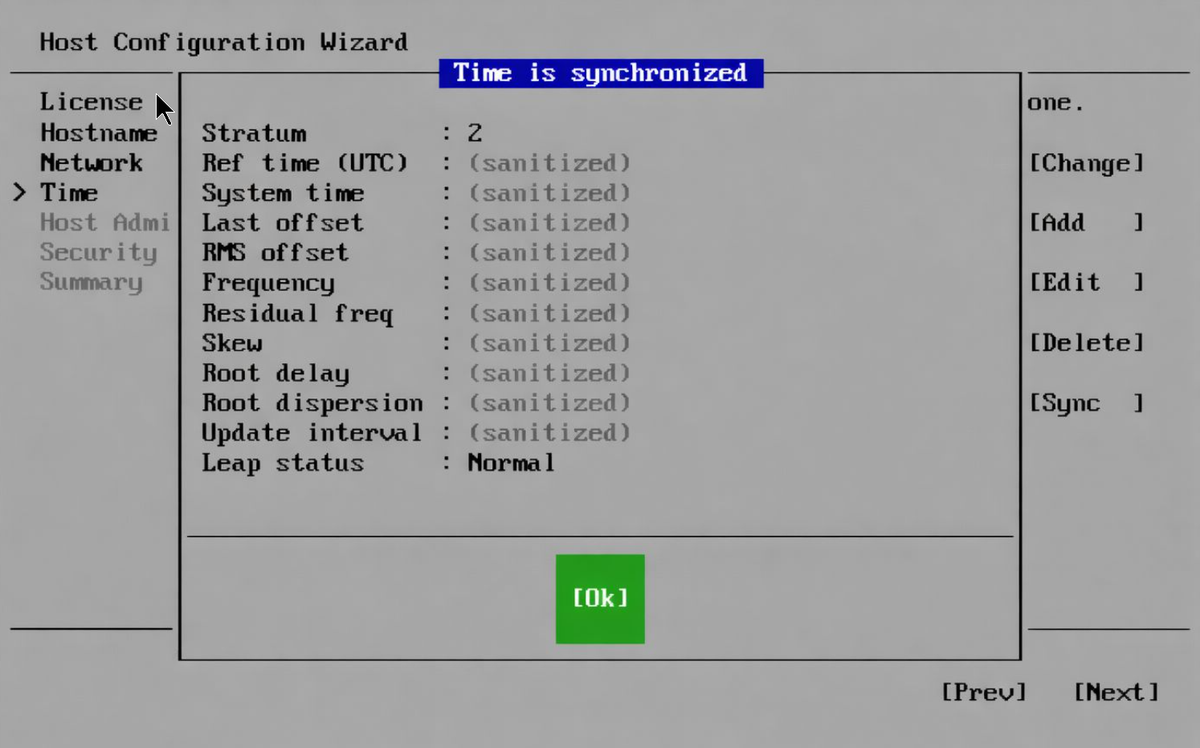
timezone America/New_York --isUtc --ntpservers=time.nist.gov
network --hostname=$Hostname
"@

# Write the config to the mounted drive
$KickstartConfig | Out-File -FilePath "$($Volume.DriveLetter):\ks.cfg" -Encoding ASCII

# Dismount the VHDX to finalize
Dismount-VHD -Path $VHDXPath

Write-Output "OEMDRV VHDX created at $VHDXPath. Attach to VM SCSI controller and boot."
By attaching this tiny VHDX to your new Generation 2 VM alongside the untouched Veeam ISO, the VSA boots, configures its own static IP, sets the time zone, and applies the hostname without a single click. It ensures the environment is structurally sound from the very first boot.
The Architect's Verdict
Transitioning from Windows-based VBR to the VSA is a strategic security decision. Veeam has built a platform that allows architects to focus entirely on data protection policies, AI-driven malware scanning, and recovery orchestration, rather than babysitting the underlying operating system. If you are building a modern, zero-trust backup perimeter, the Veeam Software Appliance is the logical foundation.