
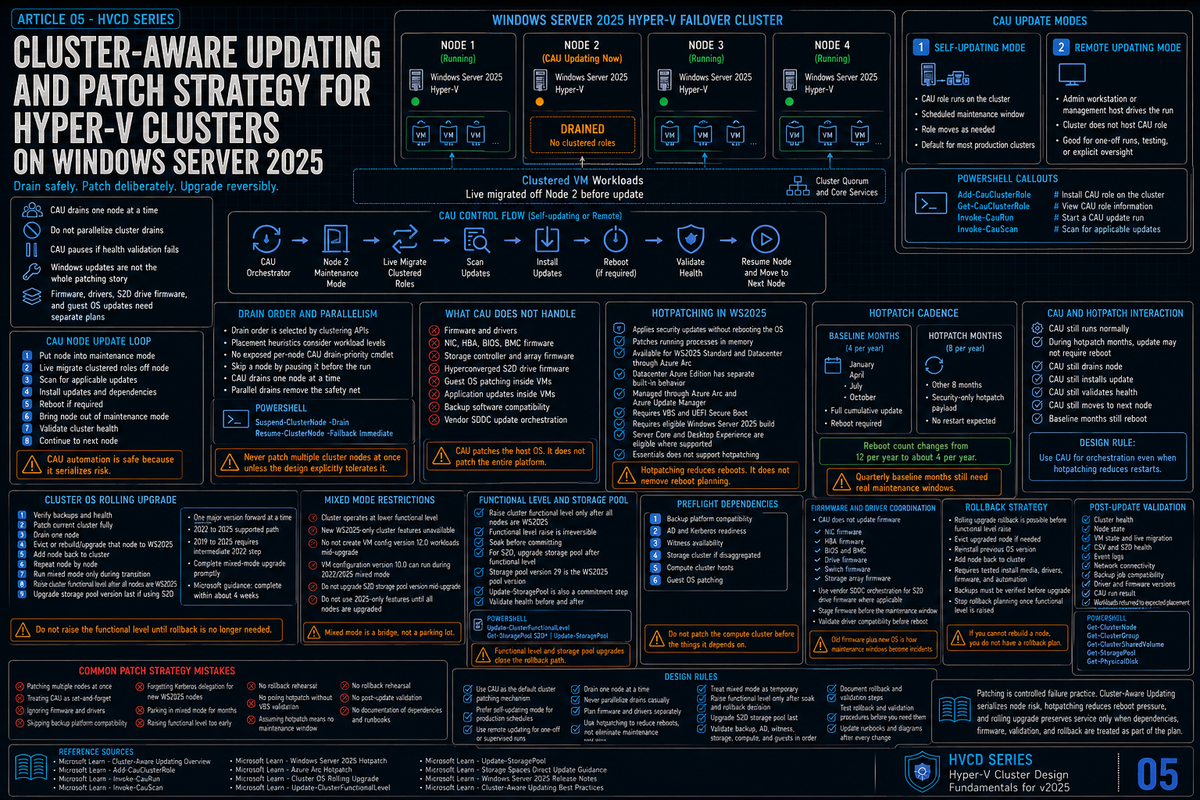
Article 5 in the Hyper-V Cluster Design Fundamentals for Windows Server 2025 series. This article covers patching strategy: Cluster Aware Updating, hotpatching via Azure Arc, and the cluster OS rolling upgrade path from 2019 or 2022 to 2025. Patching is where clusters get hurt most often; the operational discipline you bring to it is what determines whether your maintenance windows are boring or eventful.
Patching a Hyper-V cluster involves moving live workloads off a node, applying updates, restarting if required, validating health, and moving on to the next node. CAU automates that loop. Hotpatching reduces how often a reboot is required at all. Cluster OS rolling upgrade lets you move from one major Windows Server version to the next without taking the cluster down. None of these are new in 2025 in the strictest sense, but the WS2025 changes (Generation 2 default, Credential Guard default, hotpatching for non Azure Edition, processor compatibility evolution) make this a different conversation than it was on 2022.
The standing rule from earlier articles applies here too: get this right and a 12 node cluster patches itself in a maintenance window with nobody watching. Get this wrong and you spend Saturday night on a bridge call wondering why three nodes refuse to come back online.
Cluster Aware Updating, the basics that matter
CAU is the failover clustering feature that automates patching across cluster nodes while maintaining workload availability. It runs as either a self updating role on the cluster itself (the cluster patches itself on a schedule) or a remote updating mode (a separate management workstation drives the run). It coordinates with the cluster service to put each node into maintenance mode in turn, drain workloads, apply updates, restart if required, validate health, and move on.
For each node in the run, CAU does the following:
- Puts the node into cluster maintenance mode
- Live migrates VMs and other clustered roles off the node
- Scans Windows Update for applicable updates
- Installs the updates and any dependencies
- Restarts the node if any update requires it
- Brings the node out of maintenance mode
- Validates cluster health before continuing to the next node
That last step matters. CAU does not just blindly march through nodes. If the cluster does not return to a healthy state after a node comes back, CAU pauses and waits rather than continuing to drain the next node. This is exactly the right behavior for production clusters and exactly why CAU is preferred over rolling your own patching script.
Self updating mode vs remote updating mode
| Mode | How it runs | When to use |
|---|---|---|
| Self updating | CAU is configured as a clustered role. The cluster runs the updating run on a schedule. The role moves between nodes as it works through the cluster. | Default for most production clusters. Survives loss of any single management workstation. Schedule via cluster role properties. |
| Remote updating | An administrator workstation runs the CAU cmdlets and drives the run remotely. Cluster does not need to host the CAU role. | Useful for one off updates outside the schedule, for clusters where you want explicit human oversight on every run, or for testing. |
# Add the CAU clustered role for self-updating mode
Add-CauClusterRole -ClusterName HVC01 `
  -DaysOfWeek Sunday `
  -WeeksOfMonth 2,4 `
  -StartDate "2026-04-26 02:00" `
  -MaxRetriesPerNode 2 `
  -EnableFirewallRules `
  -Force

# View the configuration
Get-CauClusterRole -ClusterName HVC01

# Run a one-off updating run remotely against a cluster
Invoke-CauRun -ClusterName HVC01 -CauPluginName Microsoft.WindowsUpdatePlugin

# Preview what would be installed without actually installing
Invoke-CauScan -ClusterName HVC01 |
  Format-Table NodeName, UpdateName, UpdateInstallStatus
Drain order and what actually happens during a CAU run
CAU does not pick drain order randomly. Per Microsoft, the clustering API selects target nodes using internal metrics and intelligent placement heuristics such as workload levels. In practice the cluster picks the node with the fewest clustered roles to update first and works through the cluster from there. There is no exposed cmdlet to set an explicit per node CAU drain priority.
What you should not do is parallelize drains. CAU only drains one node at a time. Skipping that constraint by manually placing nodes into maintenance mode and patching them in parallel collapses the safety net. If two nodes are out of service at once and a third has a hardware fault, you may not have enough surviving nodes to keep the workload running.
# Drain order is not user-configurable per node.
# If you need to skip a node entirely, pause it manually before the run:
Suspend-ClusterNode -Name HV04 -Drain

# Resume the node after maintenance is complete:
Resume-ClusterNode -Name HV04 -Failback Immediate
What CAU does not handle automatically
CAU covers Windows Updates and updates from approved Windows Update for Business sources. It does not automatically handle:
- Firmware and driver updates. Network card firmware, HBA firmware, BIOS, BMC. These come from the hardware vendor and need to be applied during the same maintenance window or coordinated separately. CAU does not know about them.
- Storage controller and array firmware. If your SAN or HBA needs an update, that lives outside CAU and outside the cluster's awareness.
- Application updates inside VMs. CAU patches the host. The guest OS in each VM still needs its own patch strategy.
- Hyperconverged S2D drive firmware. Drive firmware on S2D nodes must be applied carefully. The recommended path is the SDDC vendor's update orchestration (Dell, HPE, Lenovo, etc.) which extends or replaces CAU for S2D specifically.
The trap is assuming CAU is the whole patching story. It is the cluster service patching story. Everything else still needs a plan.
Hotpatching in WS2025
Hotpatching applies security updates to running processes by patching in memory code without requiring a process restart or a system reboot. It has existed in Windows Server 2022 Datacenter Azure Edition for years. With Windows Server 2025, Azure Arc-enabled Hotpatch is now available for Standard and Datacenter editions outside Azure at no extra cost. Eligible enrolled machines do not incur a separate per-core meter, hourly Hotpatch charge, or separate Hotpatch line item; enrollment and management still go through Azure Arc and Azure Update Manager.
How hotpatching changes the patch cadence
Without hotpatching, every Patch Tuesday cumulative update needs a reboot. With hotpatching enabled, only the quarterly baseline months (January, April, July, October) require a reboot. The other eight months in the year deliver hotpatches that install without a restart. The reboot count goes from twelve per year to four per year.
| Month type | Frequency | Reboot required | Content |
|---|---|---|---|
| Baseline month | 4 per year (Jan, Apr, Jul, Oct) | Yes | Full cumulative update with security and quality fixes. Establishes the baseline for the next two months of hotpatches. |
| Hotpatch month | 8 per year (the other months) | No | Security only. In memory patching of running processes. Smaller payload than a full cumulative update. |
Requirements and enrollment outside Azure
- Windows Server 2025 build 26100.1742 or later.
- Windows Server 2025 Standard, Datacenter, or Datacenter Azure Edition. Essentials does not support hotpatching. Server Core and Desktop Experience are eligible where supported.
- Virtualization-based security (VBS) and UEFI Secure Boot enabled on the host. These requirements still matter regardless of pricing changes.
- Generation 2 VM with Secure Boot if the server is itself a VM (running on top of Hyper-V or VMware).
- Azure Arc onboarding for non Azure Edition servers. The Connected Machine agent must be installed and reporting to Azure.
- Azure subscription and Azure Update Manager are still part of the management and enrollment workflow.
- VMware caveat. If the server is a VM on VMware, the VM needs hardware assisted virtualization exposed and VBS enabled in the VM settings, which is not the default.
Windows Server 2025 Datacenter Azure Edition has Hotpatch enabled by default and does not require Azure Arc for Hotpatch. The Standard and Datacenter (non Azure Edition) hotpatching is the new no-extra-cost offering in 2025 and is the path that uses Azure Arc enrollment plus Azure Update Manager.
When hotpatching makes sense and when it does not
Hotpatching is meaningful when reboots are expensive: large clusters where draining a node takes hours, environments with strict change control where every reboot is a ticket, or workloads that legitimately cannot tolerate the small but real impact of cluster failovers during patching. For a 12 node cluster that takes 4 hours per node to drain, going from 12 reboots per year to 4 means roughly two thirds of your patching time goes away.
It is less compelling for small clusters where drains are fast, for clusters that are already on a quarterly patching cadence (where hotpatching does not change the cycle), or for environments that are not connected to Azure and have no plans to be. The Arc requirement is real and adds operational surface area; do not enable hotpatching just because it sounds nice if you are not also committed to running Azure Arc.
CAU still runs as before. The difference is that the updates CAU finds during a hotpatch month do not require a reboot. CAU still drains the node, applies the patch, validates health, and moves on, but the time spent in maintenance mode per node drops dramatically because there is no restart cycle. CAU and hotpatching are complementary, not exclusive.
Cluster OS rolling upgrade from 2022 to 2025
Cluster OS rolling upgrade lets you upgrade a Hyper-V or Scale Out File Server cluster from one major Windows Server version to the next without taking the cluster down. The cluster runs in a mixed mode (some nodes on the new OS, some on the old) for the duration of the upgrade. Live migrations between mixed nodes work normally. Once every node is on the new OS, you bump the cluster functional level to lock in the upgrade.
The supported upgrade path
The rule is simple and constraining: you can only roll forward one major version at a time. Supported direct paths to WS2025 are:
- 2022 to 2025: direct rolling upgrade. Cluster runs mixed for the duration.
- 2019 to 2022 to 2025: two sequential rolling upgrades.
- 2016 to 2019 to 2022 to 2025: three sequential rolling upgrades.
- Older than 2016: no rolling path. Build a new 2025 cluster and migrate workloads.
For most shops the practical question is 2019 to 2025 or 2022 to 2025. The 2019 to 2025 path requires going through 2022 first, which is two upgrade cycles and a non trivial amount of work. Many teams in that situation choose to stand up a new 2025 cluster and migrate VMs across rather than do two rolling upgrades back to back.
The mixed mode period
While the cluster is mixed (some nodes on 2022, some on 2025), the cluster continues to operate at the lower functional level. New 2025 only features are not available until you complete the upgrade and bump the cluster functional level. Microsoft explicitly encourages customers to complete the upgrade within four weeks because some cluster features are not optimized for clusters that run two different OS versions. Do not park there longer than that.
What works in mixed mode:
- Live migration between any pair of nodes (newer node hosts older node's VMs and vice versa, with VM configuration version constraints).
- CSV access from any node.
- Failover and node management.
What does not work or is constrained in mixed mode:
- Any 2025 only feature (storage pool version 29, S2D Campus Cluster, GPU-P live migration to a 2022 node, etc.).
- VM configuration versions newer than the cluster functional level. You can run version 10.0 (2022) VMs on a mixed cluster but not version 12.0 (2025) VMs until the upgrade is complete.
- Storage pool feature upgrades. Do not run
Update-StoragePooluntil every node is on 2025.
The actual procedure
# Pre-upgrade: verify cluster health and current functional level
Get-Cluster | Format-List Name, ClusterFunctionalLevel,
  ClusterUpgradeVersion
Test-Cluster -Cluster HVC01

# For each node, in turn:
# 1. Pause and drain the node
Suspend-ClusterNode -Name HV01 -Drain

# 2. Evict the node from the cluster
#    Microsoft's recommended pattern is evict, clean install, rejoin.
#    In place upgrade of a cluster node is not Microsoft's recommended path
#    due to compatibility and stability concerns; treat it as the exception.
Remove-ClusterNode -Name HV01 -Force

# 3. Clean install Windows Server 2025 on that node, install roles and
#    features, join the domain, and restore configuration.

# 4. Add the node back to the cluster
Add-ClusterNode -Name HV01 -Cluster HVC01

# 5. Repeat for every other node, one at a time

# Post-upgrade: bump the cluster functional level (irreversible)
Update-ClusterFunctionalLevel

# Optional but recommended: upgrade VM configuration versions
# (must be done with VMs offline)
Get-VM | Stop-VM -Force
Get-VM | Update-VMVersion
Get-VM | Start-VM

# If using S2D, upgrade the storage pool to version 29 last
Get-StoragePool S2D* | Update-StoragePool
VM configuration version compatibility
VM configuration versions are how Hyper-V tracks which features a VM has access to. A 2025 host can run any older VM configuration version. An older host cannot run a VM that has been bumped to a newer configuration version than it supports.
| VM Config Version | Introduced in | Notes |
|---|---|---|
| 5.0 | Windows Server 2012 R2 | Cannot run on Windows Server 2022 or newer. |
| 8.0 | Windows Server 2016 | Minimum required to run on Windows Server 2022. |
| 9.0 | Windows Server 2019 | Adds nested virtualization improvements, hibernate support. |
| 10.0 | Windows Server 2022 | Default for VMs created on 2022. |
| 12.0 | Windows Server 2025 | Default for VMs created on 2025. Required for some 2025 features (large vCPU counts, full GPU-P live migration). |
The upgrade rule: bump VM configuration versions only after the cluster is fully on 2025 and the cluster functional level has been raised. Bumping a VM to version 12.0 mid upgrade pins it to the 2025 nodes for the rest of the upgrade. Bumping a VM to version 12.0 at the very end is irreversible (you cannot downgrade), so do not bump VMs you might need to migrate back to a 2022 cluster.
Patch order across the broader environment
The cluster does not exist in isolation. There is an order of operations that minimizes pain:
- Backup infrastructure first. Veeam, Commvault, or whatever you use should be on the latest supported version before you start patching the cluster. A backup product that does not understand the new cluster OS or Hyper-V features is a recovery problem you do not want to discover during a restore.
- Domain controllers next. AD should be at a functional level that supports the cluster's Kerberos requirements (relevant for the 2025 Credential Guard / Kerberos transition covered in article 4).
- Witness or arbitrator hosts. File share witnesses, cloud witnesses, or quorum disks should be patched and validated before the cluster nodes themselves.
- Storage cluster (if disaggregated). If you run a Scale Out File Server cluster providing storage to a separate compute cluster, patch the SOFS cluster before the compute cluster.
- Compute cluster nodes. CAU drives this once everything else is current.
- Guest VMs. Workloads inside the VMs follow their own patch cadence after the platform is stable.
The patching mistakes that bite you later
Skipping firmware and driver updates
CAU patches the OS. Firmware on the network card, HBA, BIOS, drives, and switch are not its concern. Running a current Windows Server build on stale firmware is the single most common cause of mysterious cluster issues. Coordinate firmware and OS updates so they happen in the same maintenance window, and validate that NIC drivers are current after every Windows update because Microsoft sometimes installs older drivers from Windows Update over your vendor drivers.
Bumping the cluster functional level too early
Update-ClusterFunctionalLevel is irreversible. Running it before every single node is on 2025 will fail; running it the moment the last node finishes is fine but locks you into 2025 for the cluster as a whole. If something is wrong on the last node and you need to roll it back to 2022 for any reason, you want to do that before bumping the functional level. Run it deliberately, after a soak period, not the same hour the last node comes back.
Storage pool upgrade timing
For S2D clusters, the storage pool upgrade is its own irreversible step (covered in article 3). Do it after the cluster functional level upgrade, after a healthy soak, and only when you are committed. Bumping the pool unlocks 2025 features (thin provisioning specifically) but you cannot go back.
Treating CAU as set and forget
CAU is automation, not magic. Every CAU run still needs human attention afterward to verify the cluster is in the state you expected. Check that every node updated successfully, that no VMs are stuck in maintenance mode, and that no warnings are sitting in the cluster log. Schedule CAU runs at the start of your work day, not in the middle of the night, so the team is awake when something needs attention.
Hotpatching enrollment without VBS
Hotpatching requires VBS enabled. VBS requires UEFI Secure Boot, IOMMU, and other hardware features. Enabling VBS on a server that has Hyper-V already running can interact with running VMs in ways that need testing, especially if those VMs use older configuration versions or have nested virtualization enabled. Enable and validate VBS before you enroll in hotpatching, not at the same time.
Mixed cluster running past the recommended window
The cluster OS rolling upgrade allows mixed mode. Microsoft explicitly encourages customers to complete the upgrade within four weeks. Two weeks while you finish the upgrade is fine. Six months because the project got deprioritized is asking for trouble. Finish the upgrade or roll back; do not park there.
Forgetting Kerberos delegation on new 2025 nodes
Repeating from article 4 because it shows up in patching too: when you add a new 2025 node to a mixed cluster, configure Kerberos constrained delegation on its computer object before you start running live migrations to it. Credential Guard is on by default. CredSSP based migrations to that new node will fail.
Not testing rollback
The whole point of rolling upgrade is that you can roll back if something is wrong. The roll back path is to evict the upgraded node, reinstall 2022, and add it back to the cluster. That works only if you have not yet bumped the functional level. After functional level upgrade, rollback means rebuilding the cluster. Test the rollback path on a non production cluster before you commit to a production upgrade so the team knows what it looks like.
Key Takeaways
- CAU is the right tool. Self updating mode for production clusters. Remote updating mode for one off runs and lab work. CAU drains one node at a time on purpose; do not parallelize.
- CAU does not handle firmware, drivers, drive firmware, or guest OS patching. Build those into the maintenance window separately. SDDC vendor orchestration extends CAU for S2D drive firmware.
- Hotpatching reduces reboots but does not eliminate reboot planning. Quarterly baseline months (Jan, Apr, Jul, Oct) still need a reboot. The other eight months install without restart.
- Azure Arc-enabled Hotpatch for WS2025 Standard and Datacenter is available at no extra cost. Eligible enrolled machines do not incur a separate per-core meter, hourly Hotpatch charge, or separate Hotpatch line item. Requirements: WS2025 build 26100.1742+, VBS and UEFI Secure Boot enabled, Azure Arc onboarding for non Azure Edition servers, and Azure Update Manager for enrollment and management. Datacenter Azure Edition has Hotpatch enabled by default and does not require Azure Arc for Hotpatch.
- Cluster OS rolling upgrade only goes one major version forward at a time. 2022 to 2025 is direct. 2019 to 2025 requires going through 2022 first. 2016 needs three sequential upgrades or a new cluster build.
- Mixed cluster mode is for the duration of the upgrade only. Microsoft encourages completing the upgrade within four weeks. Finish or roll back.
- Bump the cluster functional level deliberately. Irreversible. Do it after every node is on 2025 and the cluster has soaked, not the moment the last node finishes.
- VM configuration version 12.0 is WS2025. Required for some 2025 features. Bumping is irreversible. Do it last and only on VMs that will not need to migrate back to a 2022 cluster.
- Patch order matters. Backup, AD, witness, storage cluster, compute cluster, guests. Do not patch the compute cluster before the things it depends on.
- The classic mistakes. Skipping firmware updates, bumping functional level too early, parking in mixed mode, enrolling hotpatching without VBS validation, forgetting Kerberos delegation on new nodes, not testing rollback. Avoid all of these.