

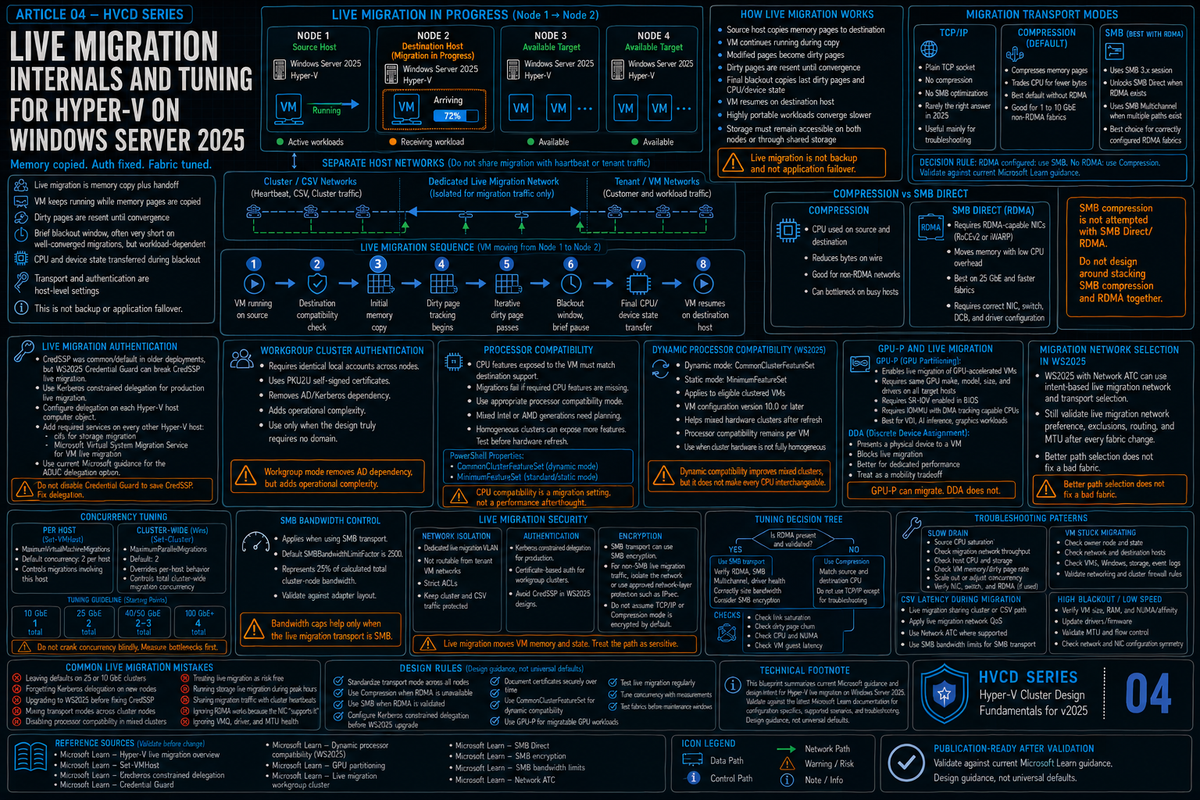
Article 4 in the Hyper-V Cluster Design Fundamentals for Windows Server 2025 series. Articles 1 through 3 covered cluster sizing, networking, and storage. This article covers live migration: how it actually works, what the three transport options really do, the WS2025 changes that matter (Credential Guard breaking CredSSP, dynamic processor compatibility, GPU-P live migration), and the tuning patterns that hold up when you are draining a node at 2 AM with 80 production VMs on it.
Live migration is the single feature that makes a Hyper-V cluster a cluster instead of a pile of VM hosts. Patching, hardware refresh, load balancing, evacuating a node before it dies, all of it depends on live migration working reliably under load. When live migration is fast and predictable, the cluster is invisible to your tenants. When it is slow, lossy, or unpredictable, every maintenance window becomes an operational event with stakeholders watching.
The mechanics of live migration have not changed dramatically since they were introduced. The defaults, the security model, and the WS2025 specific behaviors have. If you are still running clusters with the same live migration configuration you set up on 2016 or 2019, you are leaving real performance and reliability on the table, and you are about to find out the hard way what Credential Guard does to CredSSP based migrations the first time you upgrade to 2025.
How live migration actually works
Live migration is a memory copy operation with handoff. The source host iteratively copies the VM's memory pages to the destination host while the VM continues to run. As pages get modified during the copy, the source tracks the dirty pages and sends them in subsequent passes. Eventually the dirty page rate drops low enough that the source pauses the VM briefly (the blackout window, typically 1 to 2 seconds for a well converged migration), copies the last few dirty pages and CPU state, and resumes the VM on the destination. The VM never actually stops; it just changes which physical host is running its instructions.
Three things determine how fast and clean this goes:
- How fast you can move memory pages between hosts. Network bandwidth, transport efficiency, and CPU cycles available for the transfer.
- How fast the VM is dirtying pages. A mostly idle VM finishes quickly. A SQL server running an analytics query is dirtying many pages every second, which means more iterations, more total data transferred, and a longer convergence.
- What CPU features the VM was started with versus what the destination supports. If they do not match, the migration fails before it starts unless you have processor compatibility enabled.
That third one is where many migrations fail in mixed hardware clusters, and where the WS2025 dynamic processor compatibility feature changes the conversation.
The three transport options
Hyper-V supports three live migration transport modes. The setting is per host and applies to migrations originating from that host:
| Transport | How it works | When to use it |
|---|---|---|
| TCP/IP | Plain TCP socket. Hyper-V manages the connection directly between source and destination. No compression, no SMB optimizations. | Rarely the right answer in 2025. Use only if you cannot run compression for some reason and do not have RDMA capable NICs. |
| Compression (default) | Memory pages are compressed on the source before transfer over TCP. Compression and decompression cost host CPU on both ends. Compression has been the default since Windows Server 2012 R2. | The right answer for clusters without RDMA. Trades CPU cycles for reduced network bytes. Pick this on 1 to 10 GbE fabrics that do not have RDMA NICs. |
| SMB | Memory pages are sent over an SMB 3.x session. Unlocks SMB Direct (RDMA) when both ends have RDMA capable NICs and SMB Multichannel when multiple paths exist. No compression unless explicitly enabled. | The right answer for clusters with RDMA NICs. SMB Direct moves memory directly from host RAM to host RAM, bypassing most of the networking stack and freeing CPU. |
# Set the live migration transport mode (per host)
# Options: TCPIP, Compression, SMB
Set-VMHost -VirtualMachineMigrationPerformanceOption SMB

# Verify
Get-VMHost | Format-List VirtualMachineMigrationPerformanceOption,
  VirtualMachineMigrationAuthenticationType,
  MaximumVirtualMachineMigrations,
  MaximumStorageMigrations
Compression vs SMB Direct: pick based on your fabric
If you have RDMA capable NICs (whether iWARP or RoCEv2) and they are configured correctly, SMB transport with SMB Direct will outperform compression on any link 25 GbE or faster. SMB Direct moves memory pages directly between host memory regions with the NIC handling the transfer. Host CPU is barely involved. A 256 GB VM moves over a 25 GbE RDMA link in roughly the time it takes to physically move 256 GB across that link, minus a small overhead for setup and convergence.
If you do not have RDMA, compression is what you have. Memory pages compress well in most workloads because much of a typical VM's working set is repeated content or zero pages. Microsoft's own published numbers from the WS2012 R2 era cite roughly a 2x improvement over plain TCP/IP for active SQL workloads, with idle VMs seeing larger gains. The trade is CPU cycles on both hosts in exchange for fewer bytes on the wire. On modern Xeon or EPYC processors that CPU cost is acceptable for most clusters.
Pure TCP/IP transport is rarely the right choice in 2025. The only reason to pick it is if you are debugging a migration issue and want to remove compression and SMB from the variables. Otherwise, compression is the floor.
RDMA NICs configured and bound to a storage or live migration vNIC: SMB.
No RDMA, modern hardware: Compression (which is the default, so you do not have to do anything).
Anything else: pick compression and move on.
The Credential Guard problem in 2025
This is the single biggest live migration change in Windows Server 2025 and the one most likely to bite you on upgrade day. Starting with WS2025, Credential Guard is enabled by default on domain-joined, non-DC systems that meet the requirements (UEFI with Secure Boot, virtualization extensions, SLAT, sufficient TPM) and have not explicitly disabled it. Credential Guard isolates LSA secrets in a virtualization based security container, which is good for security and bad for any protocol that depends on those secrets being delegated normally.
CredSSP based live migration is one of those protocols. CredSSP was the default authentication method for Hyper-V live migration in 2022 and earlier. With Credential Guard on, CredSSP stops working for live migration. The migration fails with authentication errors that look unrelated to anything you actually changed.
The fix is to switch live migration authentication to Kerberos with constrained delegation before or during the upgrade to 2025. Kerberos is more secure anyway, and Microsoft has telegraphed for years that it should be the default. The catch is that Kerberos constrained delegation has to be configured in Active Directory, which means a Domain Administrator has to delegate the right services on each Hyper-V host computer object.
# On each Hyper-V host: switch live migration auth to Kerberos
Set-VMHost -VirtualMachineMigrationAuthenticationType Kerberos

# Verify
Get-VMHost | Format-List VirtualMachineMigrationAuthenticationType

# Constrained delegation must also be configured in AD on the host computer object.
# The two services to delegate (per destination host computer object):
#   cifs/HV02                           (for storage migration)
#   Microsoft Virtual System Migration Service/HV02
# Configure via ADUC: Computer object -> Delegation tab -> "Trust this computer
# for delegation to specified services only" -> "Use Kerberos only"
# Add both services for every destination host (every node, in a cluster).
If you do an in place upgrade or a cluster OS rolling upgrade from 2022 to 2025 without first switching to Kerberos, your live migrations will start failing the moment Credential Guard turns on. Switch the auth type to Kerberos and verify constrained delegation is configured before you start the upgrade. The bonus is that this also gets you out of CredSSP entirely, which Microsoft has been moving away from across the platform.
Workgroup clusters and certificate based authentication
WS2025 also introduces certificate based authentication for live migration in workgroup clusters. Workgroup clusters were already supported (since 2016) but live migration in workgroup clusters historically required Kerberos and therefore Active Directory. With WS2025, cluster nodes can use machine certificates to mutually authenticate live migration traffic with no AD dependency.
This is a real win for edge sites, isolated environments, and any deployment where adding a domain controller is not on the table. The setup is more involved than domain joined Kerberos because you have to manage the certificates and identical local accounts across nodes, but for the use cases that actually need it (genuinely AD free deployments), it removes one of the longstanding blockers to running Hyper-V clusters in workgroup mode. Note that workgroup clusters still come with operational tradeoffs (CAU and some other features were originally designed around AD), so plan accordingly.
Processor compatibility: the failure that nobody tests for
Hyper-V exposes the host CPU's feature set to the VM. AVX, AVX2, AVX-512, BMI, ADX, and a long list of other instruction set extensions all get advertised to the guest. The guest OS and applications can then use those instructions. The problem is that if the VM gets started on a host with AVX-512 and you live migrate it to a host without AVX-512, an application running inside the guest can issue an AVX-512 instruction that the destination CPU does not support, and the VM faults.
Hyper-V's solution is processor compatibility mode. Historically (2016 through 2022), this was static processor compatibility: when enabled, Hyper-V restricted the CPU features visible to the VM to a conservative baseline that any reasonable Intel or AMD CPU should support. Static compatibility worked but it left performance on the table because it stripped out useful features even when source and destination both supported them.
WS2025 introduces dynamic processor compatibility mode. The new mode value is CommonClusterFeatureSet. With it, Hyper-V dynamically calculates the common set of processor features across all nodes in the cluster and exposes that intersection to the VM. The VM gets a richer feature set than the static MinimumFeatureSet baseline allows but still avoids any feature that would cause faults on the destination. Per Microsoft's documentation, dynamic processor compatibility applies to VMs at configuration version 10.0 or later. For mixed hardware clusters (which is most clusters that have lived through one hardware refresh), this is the right answer.
# Enable processor compatibility on a VM with the standard mode
# (works on WS2016 through WS2025; conservative baseline)
Set-VMProcessor -VMName "VM01" -CompatibilityForMigrationEnabled $true `
                              -CompatibilityForMigrationMode MinimumFeatureSet

# Enable dynamic processor compatibility on WS2025 clusters
# Uses the calculated common feature set across all nodes in the cluster
Set-VMProcessor -VMName "VM01" -CompatibilityForMigrationEnabled $true `
                              -CompatibilityForMigrationMode CommonClusterFeatureSet

# Disable processor compatibility entirely (only safe for homogeneous clusters)
Set-VMProcessor -VMName "VM01" -CompatibilityForMigrationEnabled $false

# Note: the VM must be powered off when changing compatibility mode.
# Check the current setting on each VM
Get-VM | Get-VMProcessor |
  Format-Table VMName, CompatibilityForMigrationEnabled, CompatibilityForMigrationMode
Homogeneous cluster, every node identical, no plans to add different hardware: leave compatibility disabled (-CompatibilityForMigrationEnabled $false). VMs see the full host CPU feature set.
Mixed cluster on WS2025: enable compatibility with CommonClusterFeatureSet mode. Best of both worlds.
Mixed cluster on WS2022 or earlier: enable compatibility with MinimumFeatureSet mode. Loses some performance but works reliably.
The VM must be powered off when changing compatibility mode. Plan a maintenance window.
Concurrency, bandwidth, and the cluster level controls
Live migration concurrency is controlled at two levels: per host and cluster wide. Both matter and they interact in ways that catch people out.
Per host concurrency
Each Hyper-V host has its own setting for the maximum number of concurrent live migrations and storage migrations it will participate in (as either source or destination). Defaults are 2 simultaneous live migrations per host and 2 simultaneous storage migrations. These can be raised, but raising them past what your network can sustain just makes every migration slower because they all share the same pipe.
# Per host: set concurrent migration limits
Set-VMHost -MaximumVirtualMachineMigrations 4 `
           -MaximumStorageMigrations 2

# Per host: which networks live migration can use (subnet list)
Set-VMMigrationNetwork 192.168.20.0/24
Set-VMMigrationNetwork 10.10.20.0/24

# Verify
Get-VMHost | Format-List MaximumVirtualMachineMigrations,
  MaximumStorageMigrations, MigrationNetworks
Cluster wide concurrency and bandwidth
In a failover cluster the per host setting is overridden by the cluster wide MaximumParallelMigrations property. Article 2 covered this but it bears repeating in the live migration context:
| Cluster property | Default | What it does |
|---|---|---|
MaximumParallelMigrations | 1 | Maximum simultaneous live migrations between any pair of nodes. 1 means one VM moves at a time between two specific nodes. |
SetSMBBandwidthLimit | 1 (enabled) | Master switch for the cluster level SMB bandwidth cap on live migration traffic. |
SMBBandwidthLimitFactor | 2500 | Percentage in hundredths. 2500 caps live migration SMB to 25 percent of available SMB bandwidth, leaving 75 percent for storage and other SMB workloads. |
These cluster wide controls were introduced in the September 2022 cumulative update for Windows Server 2022 (KB5017381) and are on by default. They require the FS-SMBBW Windows feature installed on every node and SMB transport selected for live migration. If your cluster is using TCP/IP or Compression transport, the SMB bandwidth cap does not apply and the per host concurrency settings are what govern live migration behavior.
# View the cluster-wide live migration controls
Get-Cluster | Format-List MaximumParallelMigrations,
  SetSMBBandwidthLimit, SMBBandwidthLimitFactor

# Raise concurrency on a 25 GbE cluster (typical for fast CAU drains)
(Get-Cluster).MaximumParallelMigrations = 4

# Set SMB bandwidth cap to 50 percent of available SMB bandwidth
(Get-Cluster).SMBBandwidthLimitFactor = 5000

# Required Windows feature for the cluster level SMB bandwidth limit
Install-WindowsFeature -Name FS-SMBBW
GPU partitioning and live migration
GPU passthrough has historically been a live migration killer. Discrete Device Assignment (DDA), the older mechanism for giving a VM direct access to a physical GPU, blocks live migration outright. Once you DDA a GPU into a VM, that VM is pinned to that host until you remove the GPU.
WS2025 changes this with GPU partitioning (GPU-P). GPU-P slices a single physical GPU into multiple virtual partitions and assigns partitions to VMs. Unlike DDA, GPU-P live migration is supported starting with Windows Server 2025: the VM can move between hosts with compatible GPUs, with GPU state copied as part of the VM state.
If you are running AI workloads, virtual desktops, or anything else that needs GPU acceleration on Hyper-V in 2025, GPU-P is the path forward. It is useful, but it is not the same as normal SMB Direct live migration, so plan the hardware and cluster carefully:
- Transport falls back to TCP/IP with compression. GPU-P live migration does not run over SMB Direct. It automatically falls back to TCP/IP with compression for the migration data path, which can increase CPU use and make migrations take longer than a normal SMB Direct memory transfer.
- Datacenter for clustered availability. For clustered GPU-P availability during unplanned downtime, use Windows Server 2025 Datacenter on the cluster nodes.
- IOMMU DMA bit tracking required. Cluster hosts need processors that support IOMMU DMA bit tracking. Verify CPU and platform support before sizing the cluster.
- Homogeneous GPU configuration across participating hosts. GPU make, model, size, partition count, and driver versions must be consistent across the hosts that will host migrating GPU-P VMs. Mismatches block live migration even when the GPUs look "the same enough."
- Source and destination hosts need compatible GPUs. Migrating a VM with a GPU partition to a host with no GPU or a non-matching GPU will fail. Cluster design needs to account for which nodes have which GPUs.
- VM configuration version matters. Older VM configuration versions may not support GPU-P. New VMs created on WS2025 use configuration version 12.0 by default. If you are bringing older VMs forward, validate that GPU-P is exposed on your specific configuration version before relying on it.
Live migration network selection in 2025
Article 2 covered the network side of this in detail. Two changes specifically improve live migration in WS2025:
Faster path selection. When the cluster picks a network for a migration, it no longer waits the old 20 second timeout per failed network before falling back. Network selection happens fast based on what the cluster knows about NetFT paths. For clusters with multiple cluster networks (which is most production clusters), this materially speeds up migration initiation, especially the first migration after a node joins.
Routed path discovery. The cluster now discovers routed paths between nodes that live in different subnets. Multisite stretched clusters that do not share a subnet for the cluster network used to hit dead ends during live migration setup. In 2025 the cluster includes those routed paths in its candidate list. This mostly matters for stretched DR clusters but it removes an entire category of "live migration sometimes fails between sites" tickets.
Practical configuration: on each host, verify the network priority order and exclude any network that should not carry live migration traffic. The cluster picks the highest priority available network from the included list at migration time.
# Check live migration network configuration on the host
Get-VMHost | Select-Object -ExpandProperty MigrationNetworks

# Cluster-level: which networks are eligible for live migration
# This is configured via the Live Migration Settings dialog in
# Failover Cluster Manager, or via the cluster network role property:
# - Role 0: Disabled for cluster
# - Role 1: Cluster only
# - Role 3: Cluster and Client (includes live migration eligibility)

# Exclude a specific cluster network from live migration via PowerShell
# (per Microsoft Learn: Network recommendations for a Hyper-V cluster)
$VMResourceType = Get-ClusterResourceType -Name "Virtual Machine"
$ExcludedNetwork = Get-ClusterNetwork -Name "Backup-Network"
$VMResourceType | Set-ClusterParameter -Name MigrationExcludeNetworks `
                                       -Value $ExcludedNetwork.Id

# Or: enable live migration only on a single named network, exclude everything else
Get-ClusterResourceType -Name "Virtual Machine" |
  Set-ClusterParameter -Name MigrationExcludeNetworks -Value `
    ([String]::Join(";", (Get-ClusterNetwork |
      Where-Object {$_.Name -ne "LiveMigration"}).ID))
Tuning patterns for common scenarios
CAU drain is too slow
You patch a 12 node cluster monthly with Cluster Aware Updating and the drain phase takes 4 hours per node. Each drain moves 60 VMs serially because MaximumParallelMigrations is at the default of 1. The fix is not to crank concurrency to 8. The fix is to look at why your drain is slow and tune the right knob:
- If the network is the bottleneck (live migration saturating a 10 GbE link): add NICs, upgrade to 25 GbE, or accept the time and schedule drains during low usage windows.
- If the per pair concurrency is the bottleneck (lots of bandwidth, only one VM moving at a time): raise
MaximumParallelMigrationsto 2 on 25 GbE clusters, 4 on 100 GbE clusters. Watch the SMB bandwidth cap so it does not starve other traffic. - If CPU on the source is the bottleneck (compression burning all available cycles): switch to SMB transport with RDMA if you have the NICs. Otherwise live with it.
- If specific VMs are slow (large memory, high dirty page rate, like SQL Servers): treat those as a separate class. Move them outside CAU drain windows or accept that they will dominate the drain time.
Live migration starves CSV traffic
Symptom: cluster heartbeats time out during live migration storms, CSV redirected I/O kicks in, VMs see latency spikes. Root cause is almost always live migration sharing a physical link with cluster and CSV traffic without a bandwidth reservation.
The clean fix is to dedicate physical NICs for cluster and CSV traffic. The next best fix is to enforce QoS via Network ATC (compute, storage, management intents) so that cluster traffic gets a guaranteed reservation regardless of what live migration is doing on the same link. The cluster level SMB bandwidth cap helps but only if you are using SMB transport.
VM gets stuck in "Migrating" state
This happens. The VM shows as migrating but neither the source nor destination is making forward progress, and Failover Cluster Manager will not let you cancel cleanly.
First, identify which host owns the migration: Get-ClusterGroup <VM> | Format-List OwnerNode, State. Second, check both hosts for stuck VMMS processes or pending I/O on the VM's storage path. Third, if the VM has not made progress in 30 minutes, the recovery is usually to use Move-ClusterGroup to force the VM back to a known good node, then investigate the migration path itself.
Common root causes: WinRM down on one of the hosts, a VMQ driver issue causing packet loss, a VM with a virtual fibre channel adapter that the destination cannot honor, or a VM configuration version that the destination does not support.
Migration plateaus at a fraction of network speed
Symptom: a 25 GbE link, but live migration tops out at roughly 1 Gbps. This is almost always one of three things:
- VMQ disabled or misconfigured. Run
Get-NetAdapterVmqand verify VMQ is enabled on the relevant adapters. On older drivers it gets disabled silently after Windows updates. - Stale NIC drivers. Update to the vendor's current drivers, not the in box ones. Stale drivers are the single most common cause of inexplicable performance plateaus on Hyper-V networks.
- Jumbo frames misconfigured. Either jumbo frames are enabled on the host but not the switch, or vice versa, or the MTU is set asymmetrically across team members. Validate with
ping -f -l 8000 <destination>across the live migration network.
Live migration security in 2025
Live migration moves the entire memory state of a VM across the wire. If that wire is reachable from anywhere untrusted, the migration data is sensitive. There are three layers of protection:
Network isolation. The first and most important. Live migration should run on a dedicated VLAN that is not routable from VM networks or untrusted segments. If a malicious VM can reach the live migration VLAN, you have a worse problem than encryption choices.
Authentication. Kerberos with constrained delegation is the recommended option in 2025 (and required if Credential Guard is enabled, which it is by default). CredSSP still works for non Credential Guard scenarios but Microsoft has been steering away from it for years.
Encryption. Live migration over SMB can use SMB encryption. Live migration over compression or TCP/IP transport is not encrypted by default. Beginning in Windows Server 2022 and Windows 11, SMB Direct supports encryption with relatively minor performance impact (data is encrypted before placement, and AES-128-GCM is negotiated by default with AES-256-GCM and AES-256-CCM available). Older behavior, where enabling SMB encryption disabled the RDMA fast path entirely, is gone in 2022 and later. There is still a real performance cost to encryption versus unencrypted SMB Direct, but it is no longer the cliff it used to be.
Pre 2022, enabling SMB encryption killed SMB Direct performance because encryption forced the RDMA path into a slow send and receive mode. WS2022 and later changed that with encryption applied before data placement, so SMB Direct still works with encryption on, with relatively minor performance impact. The right call in 2025 depends on threat model. On a properly isolated live migration VLAN, network isolation is typically the better answer. If you cannot isolate, encryption is workable on WS2022+ without the catastrophic performance hit it used to cause.
The live migration mistakes that bite you later
Leaving everything at defaults on a 100 GbE cluster
The defaults are tuned conservatively for a 1 to 10 GbE world. On a modern 25 GbE or 100 GbE cluster, defaults like MaximumParallelMigrations = 1 and MaximumVirtualMachineMigrations = 2 per host leave most of your bandwidth idle during drains. If you have the bandwidth, raise these. If you do not, leave them alone.
Forgetting Kerberos delegation on new nodes
Add a node to the cluster, forget to configure constrained delegation on its computer object, and live migration to that new node fails with authentication errors. Build it into your node onboarding runbook so it does not get forgotten the one time it would have caught you.
Mixing transport modes across nodes
The transport mode is set per host. If three nodes are configured for SMB and one is on Compression, migrations involving that one node behave differently from migrations between the other three. Always set the same transport mode on every node in the cluster. Verify with Invoke-Command -ComputerName (Get-ClusterNode).Name { Get-VMHost | Select VirtualMachineMigrationPerformanceOption }.
Disabling processor compatibility in a mixed cluster
Setting -CompatibilityForMigrationEnabled $false on a VM in a homogeneous cluster is fine and gives you slightly better performance. Setting it that way in a mixed cluster is a recipe for VMs that randomly bluescreen after live migration when an instruction the source supported hits a destination CPU that does not. If you have any doubt about whether your cluster is fully homogeneous, leave processor compatibility enabled.
Treating live migration as risk free
Live migration is reliable but not infallible. A poorly behaved guest agent, a checkpoint that did not finish merging, a virtual fibre channel adapter the destination does not have, a network blip during the final dirty page sync; any of these can fail a migration. Production VMs should still be backed up, snapshotted before maintenance, and have an actual recovery path that does not assume live migration always succeeds.
Storage live migration during peak hours
Live storage migration moves a VM's VHDX files to different storage while the VM runs. It is a useful feature and it generates a lot of disk and network I/O. Doing it during business hours on a busy cluster will affect every VM that shares the source or destination storage path. Schedule storage migrations like you schedule backups: outside the busy window, with throttling, and not all at once.
Key Takeaways
- Three transport modes. TCP/IP (rarely correct), Compression (the default and the right answer for non RDMA fabrics), SMB (the right answer when RDMA is available).
- Credential Guard breaks CredSSP based live migration in 2025. Switch live migration auth to Kerberos with constrained delegation before upgrading. Verify delegation is configured on every host computer object in AD.
- Workgroup clusters get certificate based live migration in 2025. Real win for AD free deployments. More setup overhead than domain joined Kerberos but unblocks the use case entirely.
- Dynamic processor compatibility is the new WS2025 mode for mixed hardware. The mode value is
CommonClusterFeatureSet. It improves the older staticMinimumFeatureSetmodel for eligible clustered VMs at configuration version 10.0 or later, but processor compatibility is still a per-VM setting and staticMinimumFeatureSetbehavior remains available for cases that need it. Use it on any cluster that has lived through a hardware refresh. - Concurrency lives at two levels. Per host (
MaximumVirtualMachineMigrations) and cluster wide (MaximumParallelMigrations). Cluster wide overrides per host inside a failover cluster. - Cluster level SMB bandwidth controls. 1 concurrent live migration per pair of nodes, 25 percent SMB bandwidth cap. Introduced in the September 2022 cumulative update for WS2022 (KB5017381). Requires the FS-SMBBW feature and SMB transport.
- GPU-P enables live migration of GPU accelerated VMs. DDA still blocks live migration. If your AI or VDI workload needs live migration, plan around GPU-P on compatible GPUs.
- Live migration network selection improvements in 2025. Faster path selection (no 20 second timeout per failed network) and routed path discovery for stretched clusters across subnets.
- Encryption versus RDMA, the modern story. WS2022 and later support SMB encryption together with SMB Direct (data is encrypted before placement). The pre 2022 behavior where SMB encryption killed RDMA performance is gone. There is still a measurable cost to encryption, but on an isolated live migration VLAN, network isolation is usually the cleaner answer.
- Default tuning rule. On 25 GbE clusters, raise
MaximumParallelMigrationsto 2. On 100 GbE clusters, raise to 4. Anything higher needs a measurement, not a guess.