

Article 2 in the Hyper-V Cluster Design Fundamentals for Windows Server 2025 series. Article 1 covered sizing, CSV, quorum, and fault domains, and explicitly punted on networking. This is that article. Network roles, teaming, RDMA, Network ATC, bandwidth control, and the design choices that decide whether your cluster network ages well or burns down quietly under production load.
Hyper-V cluster networking is where good clusters become great clusters and bad clusters become incident retros. The compute and storage decisions in article 1 mostly succeed or fail in isolation. Networking touches every other layer. A network design that ignores live migration bandwidth will starve cluster heartbeats. A network design that puts CSV traffic on an unconstrained path with VM traffic will trigger false failovers under load. A network design that adopts RoCEv2 without a controlled fabric will work fine in lab and corrupt CSVs in production.
Windows Server 2025 changes the networking story in three big ways. First, LBFO is fully dead for Hyper-V virtual switches. Switch Embedded Teaming is the only supported path. Second, Network ATC moves from Azure Stack HCI into mainline Windows Server, which means you can stop hand configuring NICs and start declaring intent. Third, live migration network selection in failover clusters got two real upgrades: faster path selection and routed path discovery for stretched clusters that do not share a subnet for the cluster network.
This article walks through the network roles, the teaming and RDMA choices, the new declarative tooling, and the patterns that hold up in production. The standing rule from article 1 still applies: get this right and the rest of the cluster runs itself; get this wrong and you spend the next 18 months chasing intermittent failures that never quite reproduce in maintenance windows.
The four network roles, plus one
Every Hyper-V cluster has the same four network roles. Whether they ride on four physical networks, four VLANs, or four virtual NICs over a converged fabric depends on your hardware, your bandwidth, and your tolerance for blast radius. The roles themselves do not change.
| Role | What it carries | Sensitivity |
|---|---|---|
| Management | Host OS access, AD, DNS, Windows Update, Hyper-V management, Azure Arc, monitoring agents. | Low bandwidth, latency tolerant. Loss of this network does not stop VMs but stops you from doing anything about them. |
| Cluster and CSV | Cluster heartbeats, CSV metadata sync over SMB 3.0, redirected I/O fallback when a node loses its storage path. | Latency sensitive. Loss of this network triggers cluster failovers. Saturation triggers false node down events. |
| Live migration | VM memory transfer between hosts during planned moves and CAU evacuations. Compressed by default, encrypted only if you configure it. | Bursty. A single 256 GB VM can saturate a 25 GbE link for the duration of the move. Cluster level default for concurrent live migrations is 1. |
| VM access | North/south traffic to and from the VMs themselves. Multiple VLANs trunked through a single Hyper-V vSwitch. | Variable. A runaway VM here can starve everything else on the same NIC if QoS is not configured. |
| Storage (optional) | SMB Direct to a Scale-Out File Server, SMB to S2D over a separate fabric, iSCSI to a SAN. Skipped if storage is FC or local S2D over the cluster network. | Highest bandwidth and latency sensitivity in the entire cluster. RDMA territory. |
How many physical NICs you actually need
The minimum supportable Hyper-V cluster is two physical NICs per node. Two NICs in a SET team carrying every role over VLANs is supported and works for small clusters with modest workloads. Production clusters that run business critical workloads usually want four NICs minimum, and clusters with SMB based storage want six. The question is not how few NICs you can get away with. The question is how much blast radius you accept on each shared link.
Small cluster, FC or local S2D, modest VM density: 2 NICs in SET, all roles converged.
Standard production, SAN or S2D: 4 NICs total. 2 in SET for management, cluster, live migration, and VM traffic. 2 dedicated for storage (RDMA if SMB Direct).
High density or stretched cluster: 6 NICs. 2 management/cluster, 2 live migration, 2 storage. VM traffic on its own pair if cards allow.
The role you cannot mix
Cluster and CSV traffic should never be left to fight VM traffic on an unconstrained path. Dedicated physical adapters for cluster and CSV are the cleanest, lowest blast radius design. Converged networking is also supported, but only if VLAN isolation and QoS minimum bandwidth weights are configured so VM traffic cannot starve cluster heartbeat, CSV metadata, or redirected I/O. A runaway VM, a compromised tenant, or a poorly behaved guest agent on an unconstrained shared path can saturate it and trigger heartbeat timeouts, after which the cluster aggressively fails over services and a brownout cascades across the cluster. The real rule is: never let VM traffic starve cluster heartbeat, CSV metadata, or redirected I/O.
If you only have two NICs, use SET with Network ATC managing a converged intent, or carefully configured QoS minimum bandwidth weights per virtual NIC. Give the cluster vNIC a guaranteed weight (10 to 20 percent is typical) so VM traffic cannot starve it. Network ATC handles this automatically when you declare a converged intent. Doing it by hand without ATC is possible and was the only option for years; it just requires you to know exactly what you are doing. Do not rely on good behavior from the VM network.
LBFO is dead, SET is the answer
If you are still using LBFO teaming for Hyper-V vSwitches, Windows Server 2025 will tell you to stop. Microsoft deprecated LBFO as a Hyper-V vSwitch backing in Windows Server 2022 with a warning. In Windows Server 2025 it is a hard block. Attaching a vSwitch to an LBFO team fails with an explicit error. The -AllowNetLbfoTeams bypass parameter that worked in 2022 is now obsolete and ignored.
LBFO still works for non Hyper-V scenarios on 2025 (file servers, application servers, anywhere that does not bind a vSwitch to the team). Microsoft has telegraphed that LBFO may be removed entirely in a future release. Treat that as a "when," not an "if."
What SET actually is
Switch Embedded Teaming was introduced in Windows Server 2016 as a Hyper-V native replacement for LBFO. The team is created as part of the virtual switch instead of as a separate OS level construct that the vSwitch then binds to. This collapses two configuration steps into one and gives Hyper-V direct control of the team for VMQ, vRSS, SR-IOV, and RDMA pass through.
SET has constraints LBFO did not have. Adapters in the same SET or Network ATC intent should be symmetric: same make, model, speed, and configuration, with firmware and driver consistency treated as a production requirement. The teaming mode is always switch independent. Load balancing is either Hyper-V Port (default) or Dynamic. There is no LACP, no static teaming, no choice of switch dependent modes. The physical switches stay unaware that the team exists.
# Create a SET team and Hyper-V vSwitch in one step
New-VMSwitch -Name "vSwitch-Compute" `
  -NetAdapterName "NIC1","NIC2" `
  -EnableEmbeddedTeaming $true `
  -AllowManagementOS $true

# Verify it is SET, not LBFO
Get-VMSwitch | FL Name, EmbeddedTeamingEnabled, NetAdapterInterfaceDescriptions, SwitchType

# Set load balancing algorithm (default HyperVPort, alternative Dynamic)
Set-VMSwitchTeam -Name "vSwitch-Compute" -LoadBalancingAlgorithm HyperVPort
HyperVPort vs Dynamic
HyperVPort is the default load balancing algorithm and pins each VM (each Hyper-V virtual switch port) to a single physical NIC. A VM with one vNIC will use one of the team members for all of its outbound traffic. Inbound is hash distributed by the switch. This works fine for clusters with many VMs because the cluster as a whole spreads across team members; it is suboptimal for clusters with few large VMs because a single VM cannot exceed one NIC's bandwidth.
Dynamic distributes individual flowlets across team members and lets a single VM use multiple NICs simultaneously. The trade off is more complex tracking on the host. For a 4 NIC SET team carrying mixed VM workloads, Dynamic is usually the better choice. For a 2 NIC team or for storage focused workloads, HyperVPort is fine.
RDMA: the choice that defines your fabric
Remote Direct Memory Access lets a NIC move data between host memory regions without involving the CPU. For SMB Direct (live migration over SMB, S2D storage traffic, Scale-Out File Server traffic) RDMA is the difference between a fast link delivering close to its rated bandwidth and the same link delivering a fraction of that while burning CPU cycles on the host. If you are running S2D, Scale-Out File Server, or live migration over SMB at scale, you want RDMA NICs.
The hard choice is which RDMA transport to use. There are two viable options on Windows Server: RoCEv2 (RDMA over Converged Ethernet) and iWARP (Internet Wide Area RDMA Protocol). InfiniBand exists but is rarely chosen for general purpose Hyper-V clusters.
| Category | RoCEv2 | iWARP |
|---|---|---|
| Transport | UDP | TCP |
| Network requires | DCB, PFC, ETS configured end to end on every switch port in the path. Lossless fabric required. | Nothing. Standard Ethernet. Routable. |
| Switch firmware | Specific switch features and firmware versions matter. Vendor variations cause real outages. | Anything that passes packets. |
| Failure mode | Packet loss causes cascading SMB session resets. CSVs go offline. Hosts blue screen under sustained load. | Standard TCP retransmit. Slower under loss but does not fail catastrophically. |
| Performance ceiling | Slightly higher in clean lab conditions. | Slightly lower ceiling, much higher floor. |
| Vendor examples | Mellanox / NVIDIA ConnectX series. | Chelsio T6, some Intel and Marvell QLogic FastLinQ cards (dual mode). |
Pick iWARP unless you have a reason
For most Hyper-V clusters, iWARP is the right answer. It works on standard switches without specialized configuration, it is routable across subnets, and it fails gracefully when the network has a bad day. iWARP has been the lower friction RDMA choice on Windows Server for years and that has not changed.
RoCEv2 is the right answer when you control every switch in the path, your switch vendor publishes a known good DCB configuration for your card, and you have the network engineering bandwidth to maintain that configuration through firmware upgrades and hardware refreshes. RoCEv2 in a properly configured fabric outperforms iWARP. RoCEv2 in a misconfigured or partially configured fabric is a parade of intermittent storage failures that nobody can correlate to anything.
RoCEv2 deployments fail in three classic ways. First, DCB configured correctly on the host but not symmetrically on the switch, which works in light load and fails at peak. Second, DCBX auto negotiation enabled on either side, which Microsoft explicitly does not support and which causes settings to drift over time. Third, switch firmware updates that change PFC behavior in ways that match no Microsoft documentation. If you do not have a network team that owns the fabric configuration end to end, do not deploy RoCEv2.
DCB configuration for RoCEv2 (if you must)
If you are committed to RoCEv2, the host configuration looks roughly like the following. The switch configuration is vendor specific and is the harder half of the work.
# Install DCB feature
Install-WindowsFeature Data-Center-Bridging

# Disable DCBX auto negotiation - Microsoft does not support willing mode
Set-NetQosDcbxSetting -Willing $false

# Tag SMB traffic to priority 3, cluster traffic to priority 7
New-NetQosPolicy "SMB" -NetDirectPortMatchCondition 445 -PriorityValue8021Action 3
New-NetQosPolicy "Cluster" -Cluster -PriorityValue8021Action 7
New-NetQosPolicy "Default" -Default -PriorityValue8021Action 0

# Enable PFC on the SMB and cluster priorities, disable on others
Enable-NetQosFlowControl  -Priority 3,7
Disable-NetQosFlowControl -Priority 0,1,2,4,5,6

# Reserve bandwidth via ETS
New-NetQosTrafficClass "SMB"     -Priority 3 -BandwidthPercentage 50 -Algorithm ETS
New-NetQosTrafficClass "Cluster" -Priority 7 -BandwidthPercentage 2  -Algorithm ETS

# Apply QoS to the storage NICs
Enable-NetAdapterQos -InterfaceAlias "Storage1","Storage2"
Note the 2 percent ETS reservation for cluster traffic on priority 7. That came out of a Microsoft recommendation change after years of cluster heartbeats getting starved by SMB on shared 10 GbE links. Microsoft's current guidance is 2 percent for adapters at 10 Gbps and below, 1 percent for adapters above 10 Gbps. Without a reservation, sustained heavy SMB traffic can timeout cluster heartbeats and trigger spurious node failures. With it, the cluster always has just enough bandwidth to maintain quorum.
Network ATC: stop configuring NICs by hand
Network ATC was the standout feature of Azure Stack HCI 22H2 and is now part of mainline Windows Server in 2025. It replaces the dozens of individual cmdlets, registry edits, and switch dependent settings with a single declarative model: tell ATC what each adapter is for, and ATC configures the rest.
The intent types are management, compute, and storage. Each intent can be combined with others on the same adapters or split across separate adapters. ATC handles VLAN assignment, QoS policies, RDMA configuration, NetQos traffic classes, jumbo frames, RSS, VMQ, and SET teaming based on which combination of intent types you declare. Stretched cluster configurations (cross site) require additional manual configuration on top of the intents Network ATC manages.
Common intent patterns
# Pattern 1: Two adapters, all roles converged (small cluster)
Add-NetIntent -Name Converged -Management -Compute -Storage `
  -AdapterName pNIC01, pNIC02

# Pattern 2: Management and compute on one team, storage dedicated (standard production)
Add-NetIntent -Name MgmtCompute -Management -Compute `
  -AdapterName pNIC01, pNIC02
Add-NetIntent -Name Storage -Storage `
  -AdapterName pNIC03, pNIC04 `
  -StorageVlans 711, 712

# Pattern 3: Three separate intents (high density, dedicated NICs per role)
Add-NetIntent -Name Mgmt -Management -AdapterName pNIC01, pNIC02
Add-NetIntent -Name Compute -Compute -AdapterName pNIC03, pNIC04
Add-NetIntent -Name Storage -Storage -AdapterName pNIC05, pNIC06 `
  -StorageVlans 711, 712

# Verify intent status across the cluster
Get-NetIntentStatus | Sort-Object Host | `
  Format-Table IntentName, Host, ConfigurationStatus, ProvisioningStatus
Once an intent is applied, ATC enforces it across every node in the cluster and continuously remediates drift. If someone bumps the MTU on one adapter outside ATC, ATC sets it back. If a new node joins the cluster, ATC applies the intent automatically. This is the operational benefit that justifies the upfront investment in learning the intent model.
Storage intent gotcha
The storage intent assumes RDMA capable NICs by default and will fail with RdmaNotOperational on virtual NICs in lab environments or on adapters that do not support RDMA. The override is straightforward but worth knowing about before your first deployment:
# Disable RDMA requirement for the storage intent (lab use, or non-RDMA NICs)
$override = New-NetIntentAdapterPropertyOverrides
$override.NetworkDirect = 0
Add-NetIntent -Name Storage -Storage `
  -AdapterName vNIC01, vNIC02 `
  -AdapterPropertyOverrides $override
The default storage VLANs are 711 and 712. If those collide with your existing fabric, override with -StorageVlans. The storage intent also auto assigns IPs to storage NICs unless you opt out with a StorageOverrides object.
Bandwidth control for live migration
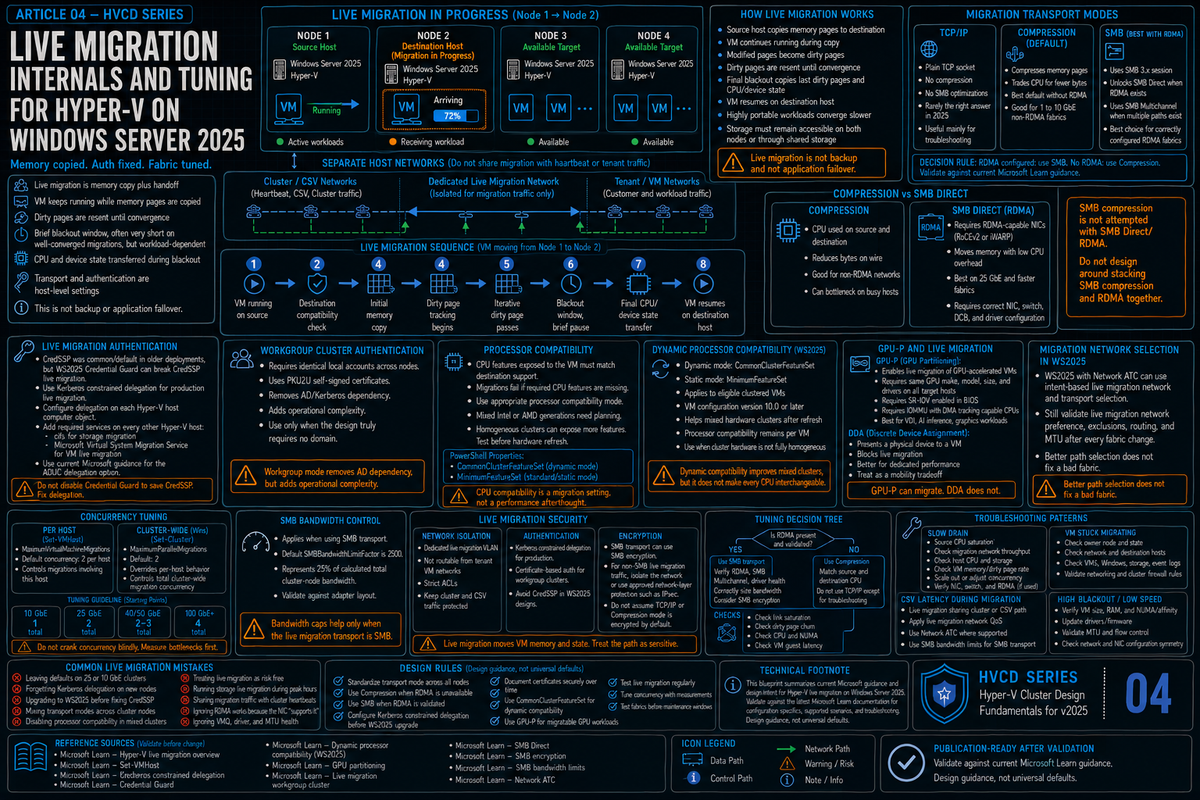
Live migration over SMB can saturate any single network link in the cluster. A 256 GB VM moving from one host to another over 25 GbE will use every available bit of that link until the move completes. If that link also carries CSV traffic, cluster heartbeats, or storage, those things stop while the live migration runs.
Failover Clustering ships cluster level defaults that prevent this. The relevant cluster parameters were introduced in the September 2022 cumulative update for Windows Server 2022 and carry forward into 2025. They are on by default. If you are coming from an older cluster that pre dates the 2022 update, the first time you patch into them the defaults will get applied automatically.
| Parameter | Default | Effect |
|---|---|---|
SetSMBBandwidthLimit | 1 (enabled) | Master switch for the cluster level SMB bandwidth cap. |
SMBBandwidthLimitFactor | 2500 | Percentage in hundredths. 2500 = 25 percent. Caps live migration SMB to 25 percent of available SMB bandwidth. |
MaximumParallelMigrations | 1 | Maximum simultaneous live migrations between any two nodes. |
# View current cluster-wide live migration controls
Get-Cluster | Format-List MaximumParallelMigrations, SetSMBBandwidthLimit, SMBBandwidthLimitFactor

# Increase parallel migration count (use with care on 10 GbE; safe on 25/100 GbE)
(Get-Cluster).MaximumParallelMigrations = 4

# Adjust the bandwidth limit factor to 50 percent of SMB bandwidth
(Get-Cluster).SMBBandwidthLimitFactor = 5000

# Disable the SMB bandwidth limit entirely (rarely a good idea)
(Get-Cluster).SetSMBBandwidthLimit = 0
The default of 25 percent reservation and 1 concurrent migration is conservative on purpose. It guarantees that 75 percent of available SMB bandwidth is left for storage and that two nodes never start fighting each other for the same link. On 25 GbE and 100 GbE clusters where bandwidth is plentiful, raising parallel migrations to 2 or 4 cuts CAU drain time substantially without creating contention. On 10 GbE clusters where every Mbps matters, leave the defaults alone.
Live migration network selection in 2025
Cluster live migration network selection got two real upgrades in 2025. First, when the cluster picks a network for a migration it no longer waits the old 20 second timeout per failed network before falling back. Network selection happens fast based on what the cluster knows about NetFT paths between source and destination. For clusters with multiple cluster networks, this materially speeds up migration initiation, especially the first migration after a node joins.
Second, the cluster now discovers routed paths between nodes that live in different subnets. Multisite stretched clusters that do not share a subnet for the cluster network used to hit dead ends during live migration setup. In 2025 the cluster includes those routed paths in its candidate list and lets live migration use them. This is a quiet improvement that mostly matters for stretched DR clusters but it removes an entire category of "live migration sometimes fails between sites" tickets.
Network HUD (preview)
Network HUD is the standout new preview monitoring capability for Windows Server 2025 cluster networking, aimed at the operational gap between "the network is configured" and "the network is actually working as intended." It runs continuously, correlates host adapter state with switch LLDP signals, and surfaces health faults when something drifts (PFC missing on a switch port, VLAN mismatch between host and fabric, a flapping adapter that has not yet failed, stale or anomalous adapter drivers). Treat the preview label seriously, verify eligibility and regional availability before designing around it.
Per Microsoft Learn, Network HUD requires:
- Windows Server Failover Clustering
- Windows Server 2025 Datacenter on cluster nodes (Standard is not in scope)
- Network ATC deployed with host networking intents (HUD uses the intent metadata to know what each adapter is supposed to be doing)
- Storage Spaces Direct enabled (HUD requires the Cluster Health service that S2D ships)
- DataCenterBridging LLDP Tools installed
- Each cluster node connected to Azure Arc
- Eligibility for Windows Server Management enabled by Azure Arc
- Network HUD availability in supported Azure regions
- Physical switches that meet applicable Azure Local validated switch and switch requirement guidance
If your cluster meets the requirements, it is worth evaluating. It catches PFC misconfiguration on top of rack switches before it causes an S2D outage, VLAN drift between vSwitches and physical switches before VMs start failing to reach the network, and driver staleness as an actionable alert rather than a footnote in a failure analysis. That is exactly the kind of host and switch drift that causes expensive S2D and cluster incidents.
If your environment cannot use Arc, S2D, Datacenter, or supported regions, document compensating checks: LLDP drift, VLAN mismatches between switches and hosts, PFC/ETS drift, stale or anomalous drivers, and flapping adapters. The configuration discipline you put into Network ATC (or into manual configuration if you skip ATC) is your safety net.
Convergence patterns and when to break them
The eternal Hyper-V networking debate is whether to converge roles onto a single SET team or split them across dedicated NICs. The answer depends on bandwidth and blast radius, and the inflection points are clearer than they used to be.
When convergence works
- You have at least 2x 25 GbE NICs, ideally 2x 100 GbE.
- QoS policies are in place via Network ATC or hand configured weights.
- Storage either uses a separate fabric (FC, dedicated iSCSI, or local S2D over its own NICs) or is light enough that SMB on the converged team is fine.
- You accept that any link saturation event affects every role on the team.
When to dedicate
- You are running RoCEv2 storage. RDMA pinning to dedicated NICs is dramatically simpler than RDMA over a converged team.
- Your VM workload is bandwidth heavy enough that VM traffic alone could saturate the team.
- Your live migration patterns are bursty (large VMs, frequent moves, CAU evacuations of densely packed hosts).
- You have stretched cluster traffic between sites that needs predictable bandwidth.
- You are on 10 GbE and any single role can saturate a link by itself.
For new builds in 2025: 4 NICs per node. 2 in a SET team for management, cluster, live migration, and VM traffic, with Network ATC managing QoS. 2 dedicated for storage with iWARP RDMA and a separate switch fabric (or two storage VLANs on the same fabric if you must). This pattern handles most production workloads, keeps blast radius contained, and lines up cleanly with how Network ATC and Network HUD expect the world to look.
The networking decisions that bite you later
RoCEv2 without a network owner
RoCEv2 demands ongoing network engineering attention. DCB and PFC drift through firmware upgrades. Switch replacements need careful migration. New cards need DCB configuration that matches what is on the existing fleet. If your shop does not have a network team that owns the fabric end to end and treats it as production, RoCEv2 will eventually fail in a way that is hard to diagnose and harder to fix mid incident. Pick iWARP and move on.
Skipping Network ATC
You can configure host networking by hand and many shops do. The cost is configuration drift. One node gets a manual MTU bump for troubleshooting and never gets reverted. Another node gets a slightly different VLAN added during a fabric change. Six months later something fails on three nodes but not the others and nobody can tell you why. Network ATC removes that class of problem because it actively reconciles every node against the declared intent. The learning curve is real but cheaper than the alternative.
Treating live migration as free
Live migration uses real network bandwidth and real CPU cycles. The cluster level defaults (1 concurrent migration, 25 percent SMB cap) protect you from yourself but only if you leave them alone. Cranking MaximumParallelMigrations to 8 because CAU is too slow is a recipe for live migration starving everything else when the cluster patches twelve nodes in a row. If you need faster CAU, add NICs or upgrade to 25 GbE, do not just turn off the speed limits.
Putting the management network on the same VLAN as production VMs
If your hosts management interfaces are reachable from the same VLAN that your VMs use, anyone who compromises a VM has direct network access to the Hyper-V hosts. This is a common finding in MSP audits and it is always a fight to fix because the original deployment did it for convenience. Put management on its own VLAN, accessed only from a jump host or admin network, from day one.
Mixing NIC vendors in the same SET team
SET requires symmetric adapters: same make, model, firmware, driver. Mixing a Mellanox card with an Intel card in the same team is not supported. People do it anyway in lab environments and pay for it later when production deployments fail validation. If your hardware refresh changes NIC vendors, plan for a coordinated cluster wide swap rather than a piecemeal one.
Forgetting cluster network priority for live migration
Even with Network ATC managing things, you should explicitly verify that live migration uses the network you intend. Check Get-VMHost | Select VirtualMachineMigrationNetworks on each host and confirm the cluster live migration network priority list in Failover Cluster Manager. The defaults are usually fine but in stretched clusters and converged designs the priority list does not always match what an admin would draw on a whiteboard.
Key Takeaways
- Four roles, sometimes five. Management, cluster and CSV, live migration, VM access, and optionally storage. The roles are constant; the number of physical NICs is the variable.
- The one rule. Never let VM traffic starve cluster heartbeat, CSV metadata, or redirected I/O. Dedicated physical adapters for cluster and CSV are the cleanest design; converged is supported when VLAN isolation and QoS minimum bandwidth are configured (Network ATC handles it on a converged intent).
- LBFO is dead for Hyper-V. Windows Server 2025 hard blocks attaching a vSwitch to an LBFO team. SET is the only supported teaming for Hyper-V.
- SET constraints. Same make, model, firmware, driver across all team members. Switch independent only. HyperVPort or Dynamic load balancing.
- RDMA: pick iWARP unless you have a reason. iWARP works on standard Ethernet, fails gracefully, and does not require DCB. RoCEv2 is faster in lab and dangerous in production without an end to end network owner.
- Network ATC is the new baseline. Declare management, compute, or storage intents and let ATC handle the configuration. The intent model also drives Network HUD diagnostics.
- Cluster level live migration defaults. 1 concurrent migration per pair of nodes, SMB bandwidth capped at 25 percent of available SMB bandwidth. Introduced in the September 2022 cumulative update for Windows Server 2022 and carry forward in 2025. On by default. Tune them up only when bandwidth allows.
- Network HUD prerequisites (preview). Network HUD is currently in preview. Requires WS2025 Datacenter, Network ATC with intents, S2D enabled, DataCenterBridging LLDP Tools, each node connected to Azure Arc with Windows Server Management eligibility, and availability in your Azure region, plus physical switches that meet Azure Local validated switch guidance. If your cluster meets these, evaluate it. If it does not, the Network ATC drift remediation plus manual checks for LLDP/VLAN/PFC drift, stale drivers, and flapping adapters are your safety net.
- Default new build pattern. 4 NICs per node. 2 in SET for management, cluster, live migration, VM traffic. 2 dedicated for storage with iWARP. Network ATC managing both intents.
- Live migration network selection in 2025. Faster path selection (no 20 second timeout per failed network) and routed path discovery for stretched clusters that do not share a subnet for the cluster network.